
 rotate(10)'/%3E%3Cpath d='M.038.113v.15l.15.088.15-.088v-.15L.188.025l-.15.088Z' stroke='%23c44900' stroke-width='.0375' transform='rotate(10)'/%3E%3C/svg%3E)
The Five Requirement Types
Step 2 of the wizard decides everything after it. Here is what each type does.
Every course slot is one of five kinds of requirement. Choosing correctly at step 2 means the rest of the wizard fills itself in; choosing wrongly means rebuilding the slot.
| Type | Use it when |
|---|---|
| University College (UNIV) course | The slot is an advisor-placed UNIV seminar. |
| Core curriculum category | The student chooses from an approved core category. |
| One specific course | The program requires exactly one named catalog course. |
| Minor requirement | The student takes a course toward their declared minor. |
| Course list or range | You define the choices yourself. Use this for electives. |
Type 1 — University College (UNIV) course
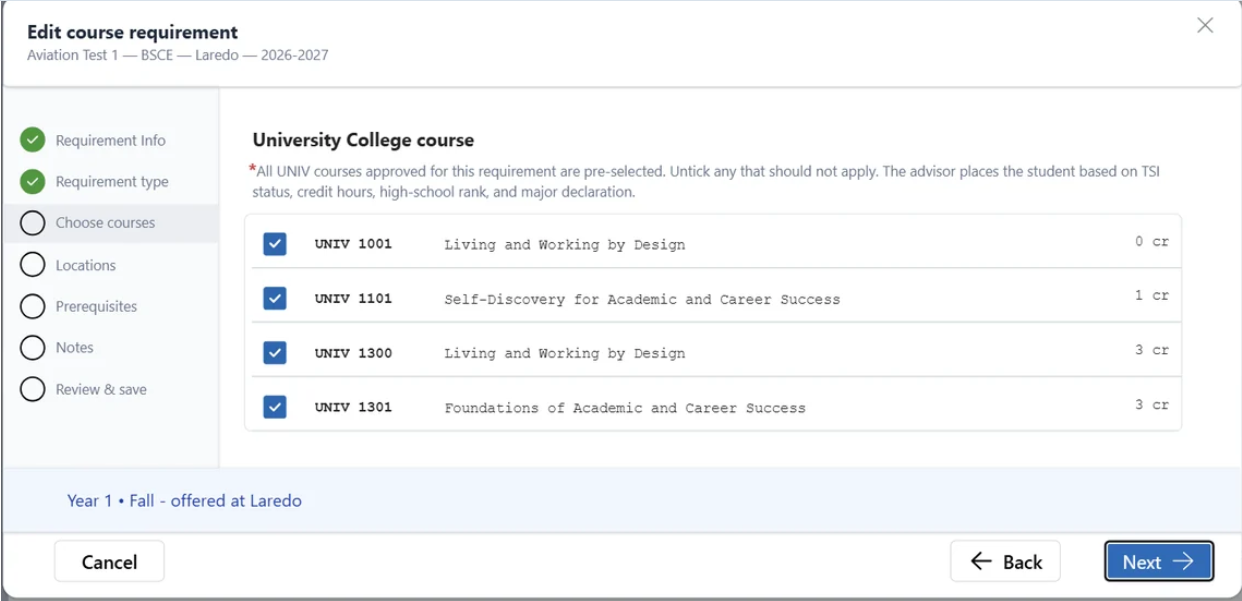
An advisor-placed UNIV seminar, for example UNIV 1301 — Foundations of Academic and Career Success. The approved UNIV course list is pulled in automatically. Select whichever options apply—one, several, or all.
Type 2 — Core curriculum category
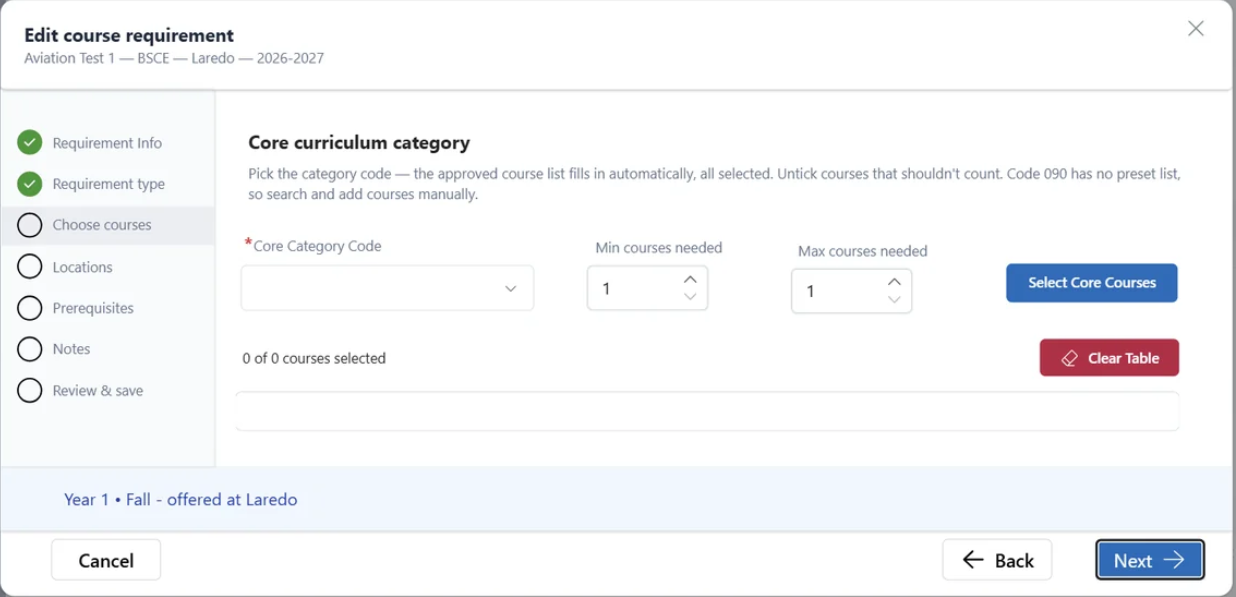
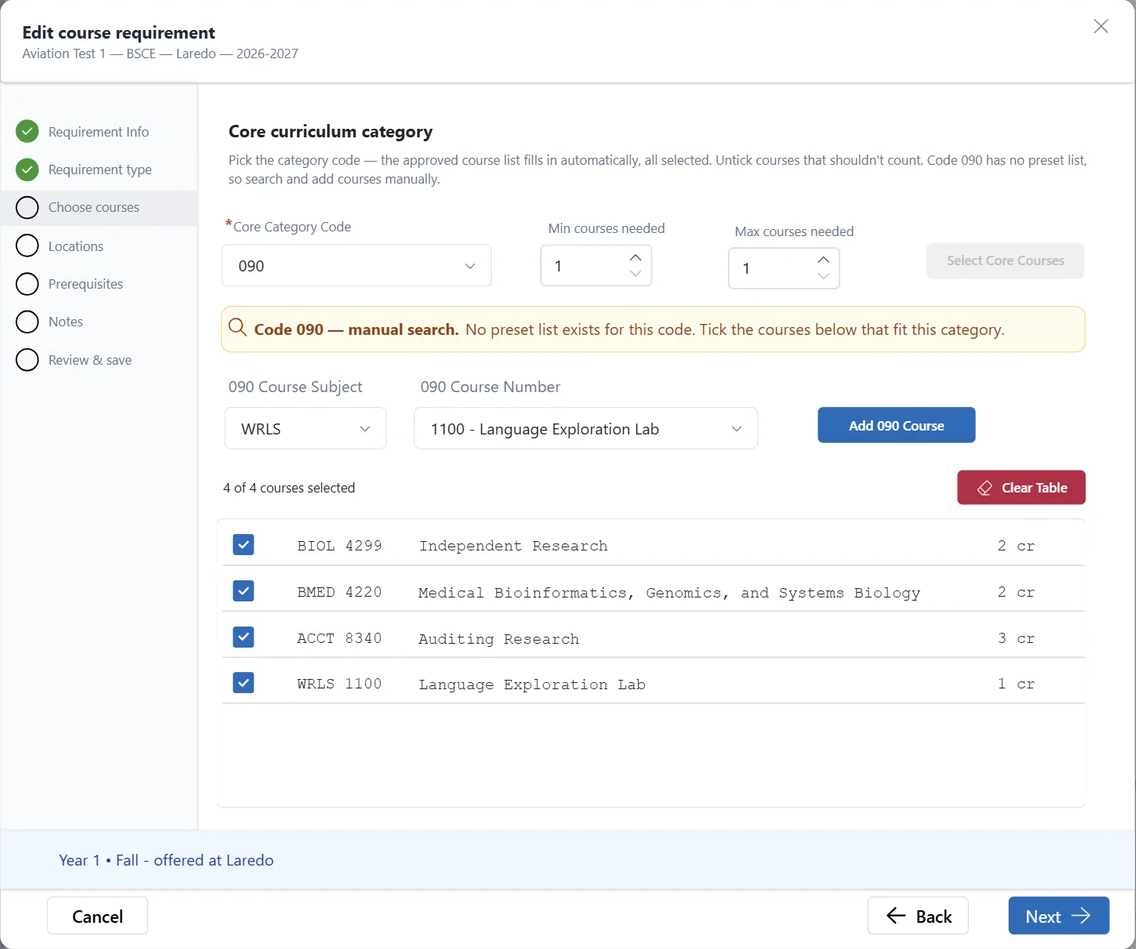
The student chooses from an approved core category. Pick the category code and set the minimum and maximum number of courses required.
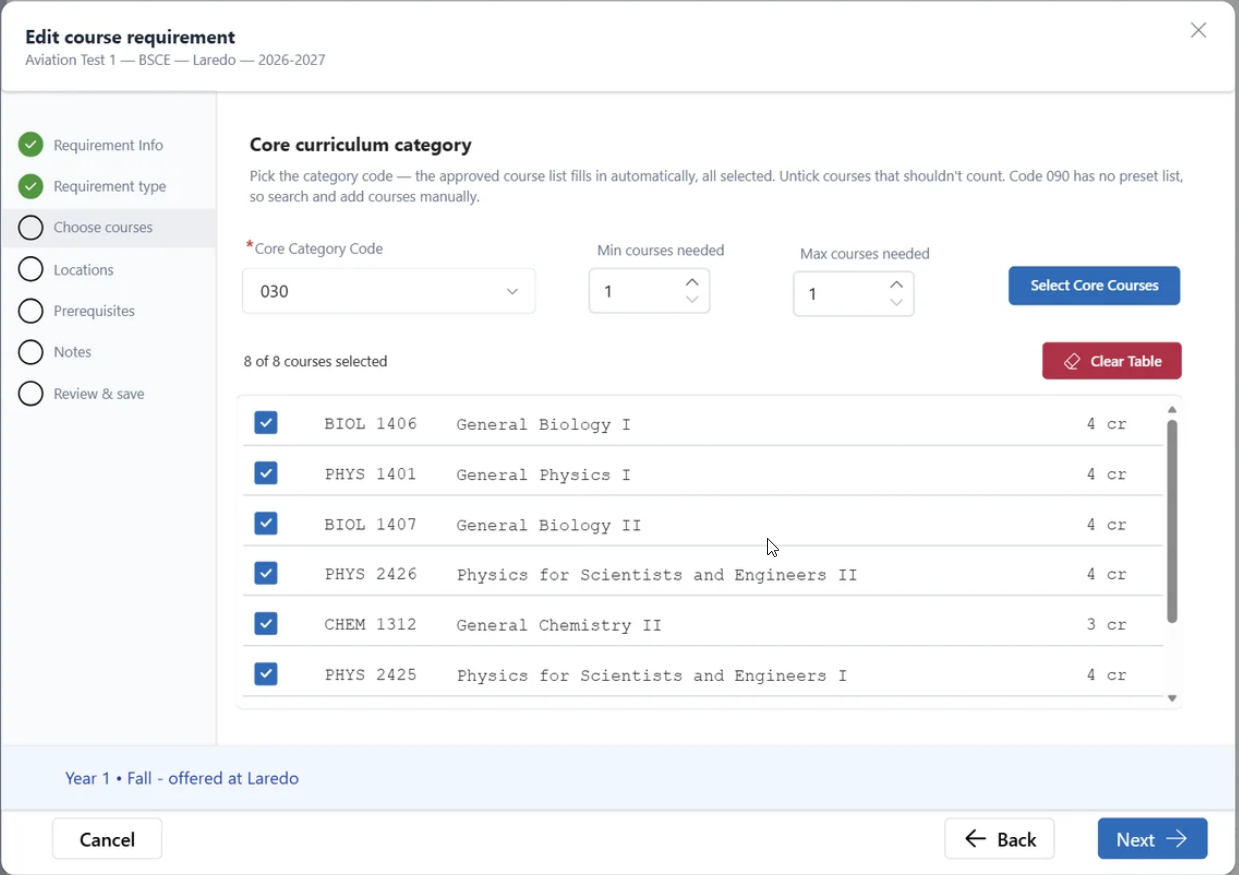
The approved courses for that category populate automatically. Select one, several or all of them. Clear Table empties your selection if you need to start again.
Type 3 — One specific course
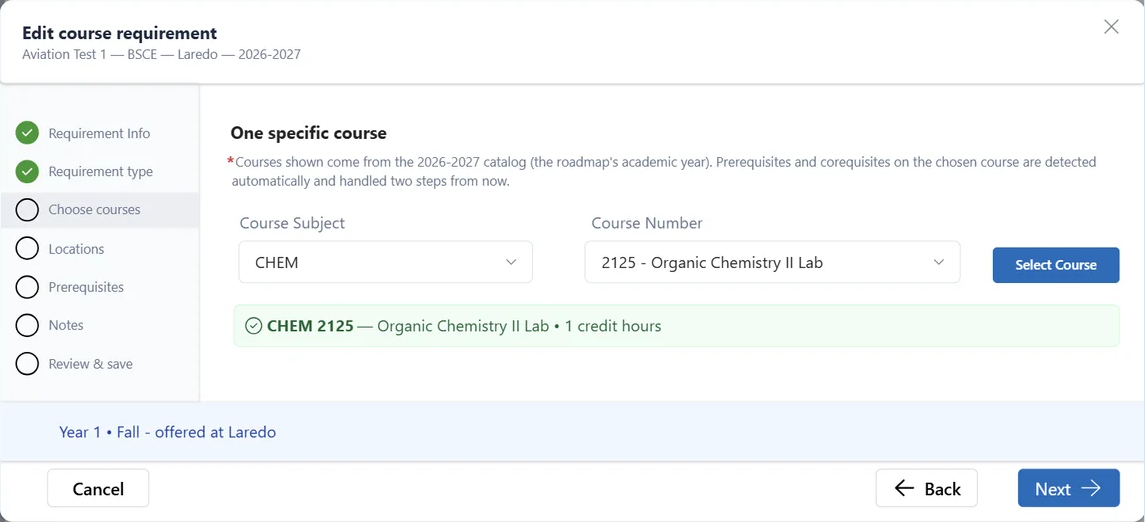
Use this when the program requires exactly one named course and there is no choice involved.
- Choose the Course Subject—the subject prefix, for example CHEM.
- Choose the Course Number from the list that appears.
- Click Select Course. A green confirmation bar shows the course and its credit hours.
Type 4 — Minor requirement
Use this when the slot is a course the student takes toward their declared minor. There is nothing to configure—the entry is standardized across every program, so the wizard simply confirms what saving will create.
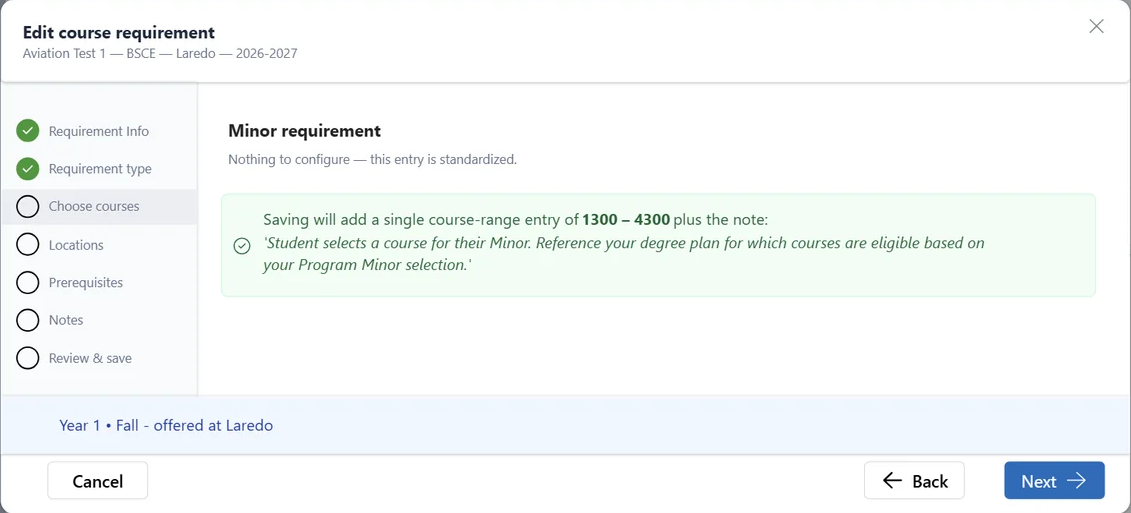
Saving adds a single course-range entry of 1300–4300, plus this note for students:
Type 5 — Course list or range (electives)
The most flexible of the five types, and the one to use for electives.
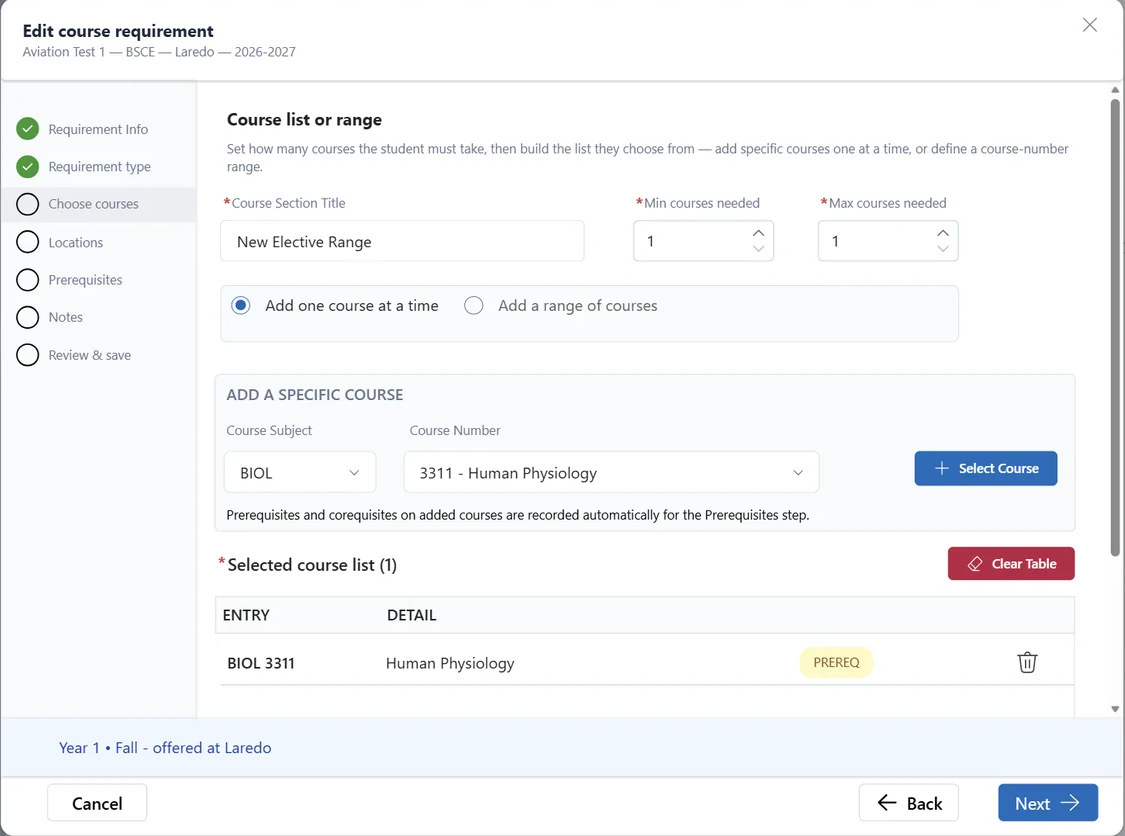
- Enter a Course Section Title—the label students will see.
- Set Min courses needed and Max courses needed.
- Choose how to build the list: Add one course at a time, or Add a range of courses.
Adding courses one at a time
Pick a Course Subject and Course Number, then click Select Course. The course drops into the Selected course list below. Repeat for as many courses as you need. The trash icon removes a single entry; Clear Table empties the whole list.
Adding a range of courses
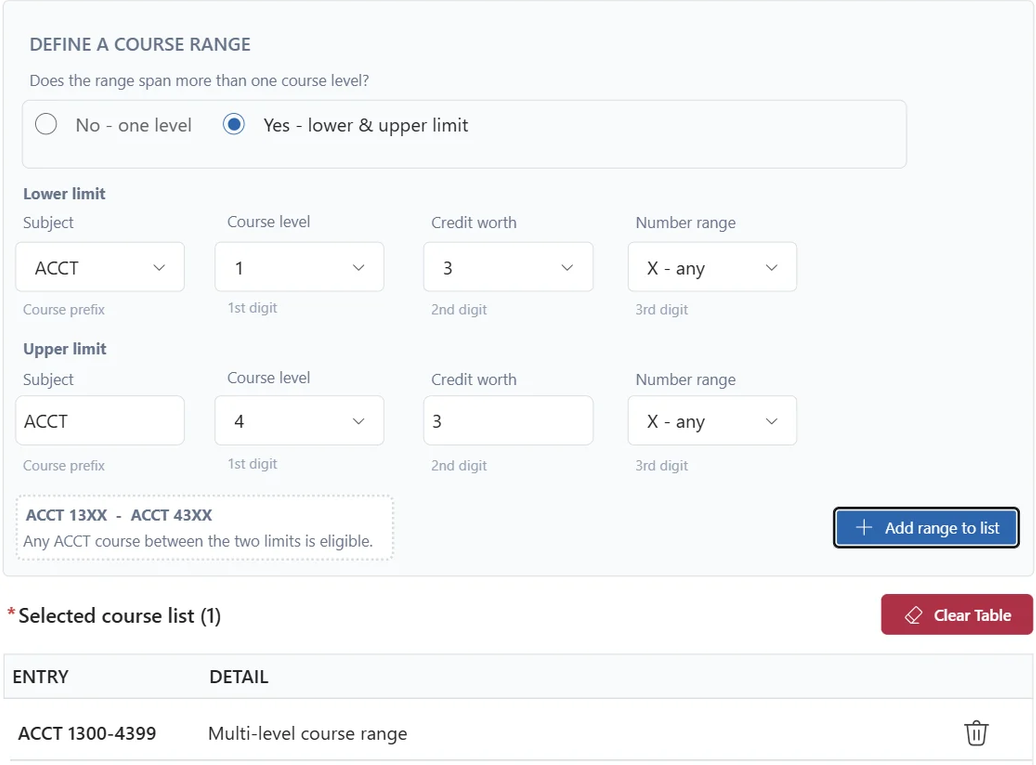
Define the list by course-number pattern instead of naming every course. First answer Does the range span more than one course level?
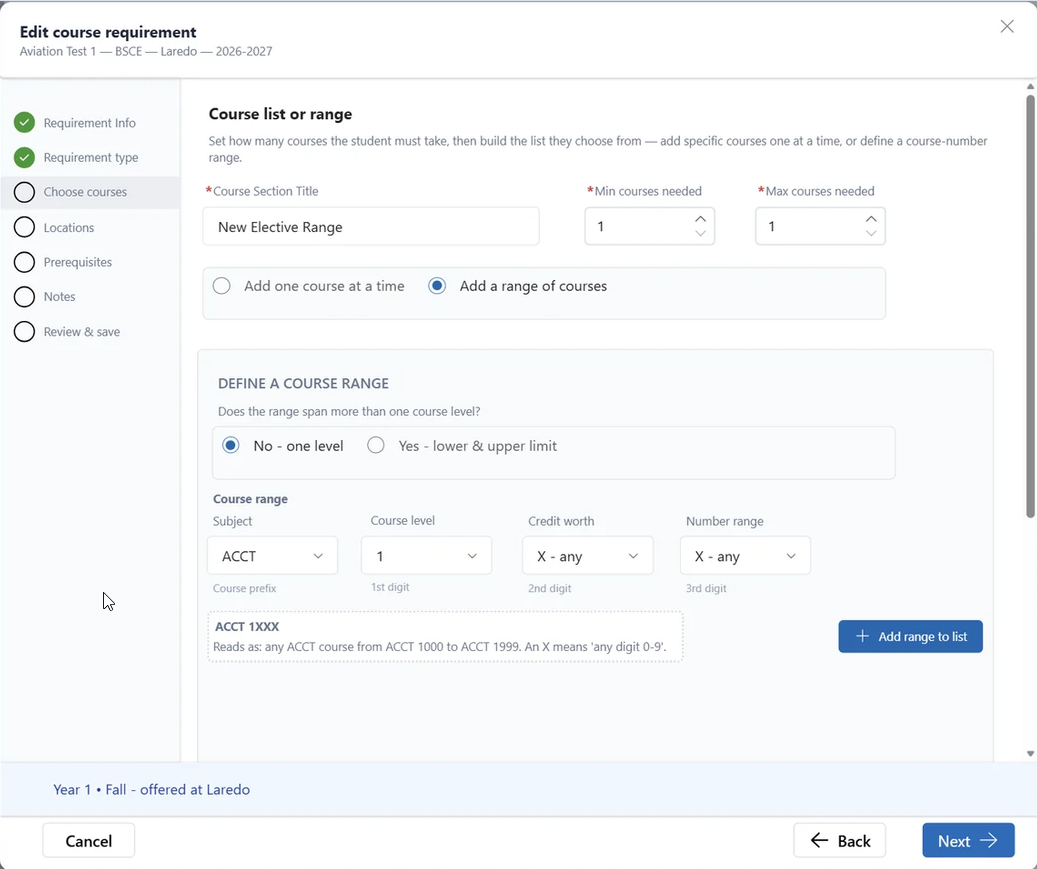
Four dropdowns build the pattern. An X means any digit from 0 through 9.
| Dropdown | Digit | What it sets |
|---|---|---|
| Subject | Prefix | The course prefix, for example ACCT. |
| Course level | First digit | Freshman through senior level—1, 2, 3 or 4. |
| Credit worth | Second digit | The credit hours the course carries, or X for any. |
| Number range | Third digit | The final digit, or X for any. |
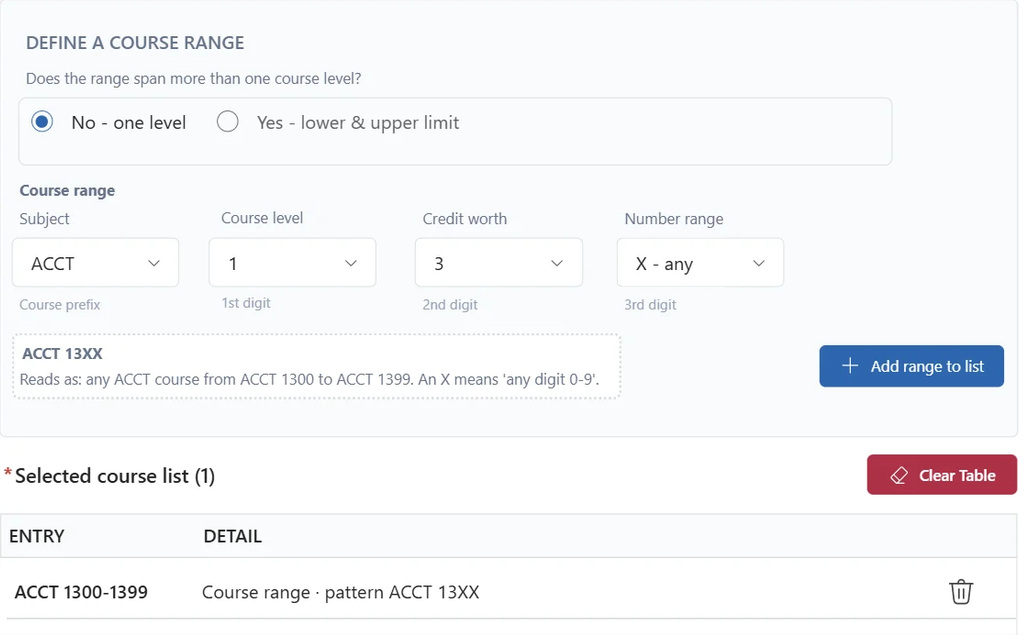
The portal shows a plain-English reading of the pattern as you build it. When it reads correctly, click Add range to list.
Option A — No, one level
The range sits inside a single course level. Below, ACCT 13XX is read back as any ACCT course from ACCT 1300 to ACCT 1399, and lands in the list as ACCT 1300–1399.
Option B — Yes, lower and upper limit
The range spans several course levels, so you define a lower limit and an upper limit. Below, ACCT 13XX to ACCT 43XX is read back as any ACCT course between the two limits, and lands in the list as ACCT 1300–4399, a multi-level course range.