
  • About Us
    • Our Team
    • Meet the Provost and Executive Vice President
    • Messages From the Provost
    • Organizational Chart
  • Faculty Resources
  • Contact Us
  • DIRECTORY
  • MAPS
  • MYUTRGV
  • NEWS
  • GIVE
UTRGV home
The University of Texas
Rio Grande Valley
  • DIRECTORY
  • MAPS
  • MYUTRGV
  • News
  • GIVE
Open Search Menu
Menu
UTRGV Trademark Logo
Office of the Provost
  • About Us
    ▼
    About Us Square placeholder image 300px
    • About Us
      • Our Team
      • Meet the Provost and Executive Vice President
      • Messages From the Provost
      • Organizational Chart
  • Faculty Resources
  • Contact Us

Track: Manager

  1. Home
  2. Digital Solutions
  3. Roadmap Portal - Training
  4. Track: Manager
Digital Solutions Menu
Menu

Digital Solutions Menu

  • Reports and Dashboards
  • Roadmap Portal
    • Sign In and Access
    • Browsing and Viewing Roadmaps
    • Reference Tables
    • Editing a Roadmap
    • Adding a Course Requirement
    • The Five Requirement Types
    • Creating a New Roadmap
    • Catalog Year Rollover
    • Assigning Reviewers
    • Approving a Roadmap
    • Frequently Asked Questions
  • Roadmap Portal - Training
    • Onboarding: Start Here
    • Track: View Only
    • Track: Editor
    • Track: Manager
    • Track: Reviewer

Contact Us

academicIT@utrgv.edu


Track: Manager

25 minutes, after Foundations and the Editor track. Managers can do everything an Editor can, so this covers only what is yours alone.
Do the Editor track first. Everything in Track: Editor applies to you in full. This track covers only the review process.

Module 1

Running a review

15 min

By the end of this module you can take a submission from arrival to a review that is properly under way, and you know what confirms it worked.

↗ Enlarge
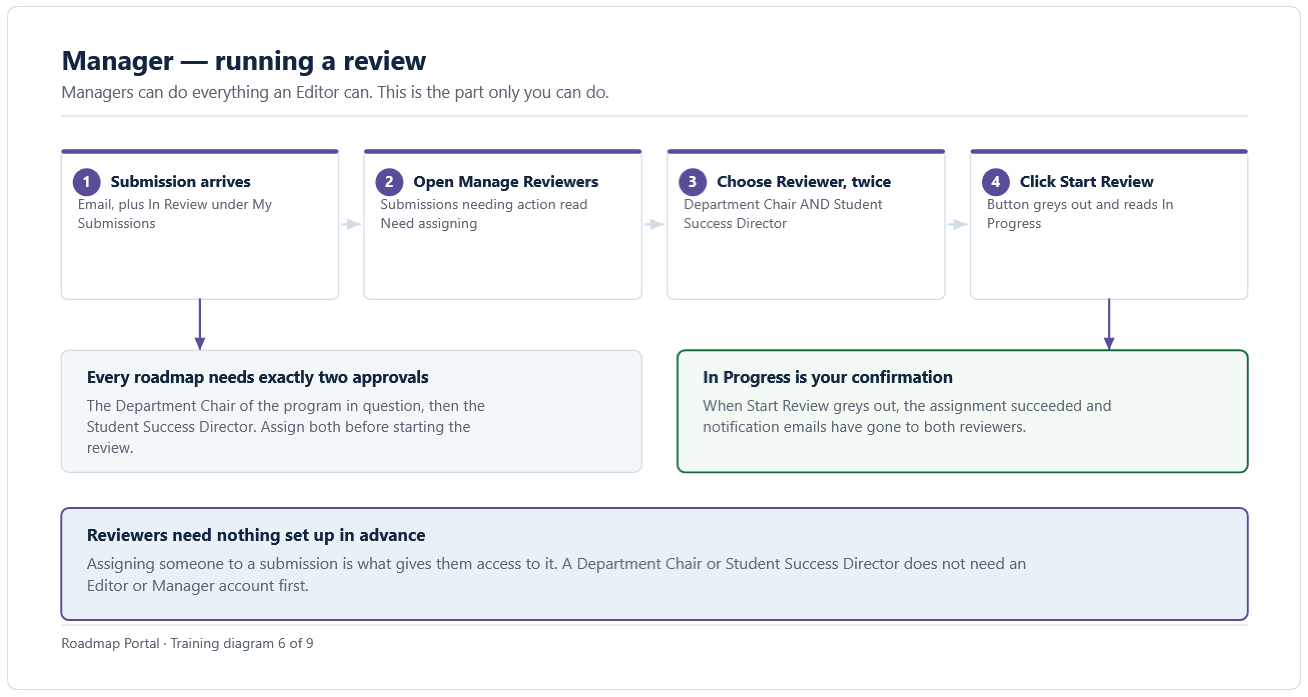
Manager review workflow. A submission arrives, the Manager opens Manage Reviewers, chooses two reviewers, and starts the review. The Department Chair reviews first, followed by the Student Success Director. An In Progress status confirms the review was started successfully.
Four steps from a submission arriving to reviewers being notified.

WHAT TO TAKE FROM THIS

  • A submission arrives two ways at once: an email, and In Review under My Submissions.
  • Reviewer assignment happens on the Manage Reviewers tab. Submissions needing attention are marked Need assigning.
  • Assign both reviewers before starting. Every roadmap needs the Department Chair of that program and the Student Success Director.
  • There is no success message. Start Review greying out to read In Progress is your confirmation that emails have gone out.
  • Reviewers need no account set up beforehand — assigning them is what grants access.

 TRY IT IN THE PORTAL

  1. Open Roadmap Workspace › Manage Reviewers and look at the list on the left. Identify anything marked Need assigning.
  2. Select one and read the Review Type Info panel confirming which two approvals are required.
  3. If you have a genuine submission waiting, assign both reviewers and click Start Review. Confirm the button greys out to In Progress.
  4. If you have nothing waiting, walk the diagram again and name the two approvers you would assign for a program in your own college.

CHECK YOURSELF

Only one of the two required reviewers is assigned. Both the Chair and the Student Success Director must be assigned before starting.

Start Review greys out and reads In Progress. That is the confirmation, and it means notification emails have gone out.

Nothing extra. Assigning them to the submission is what grants them access to it.
Module 3

What happens after you submit

8 min

By the end of this module you know where your roadmap goes, who touches it, and what a request for changes means for you.

↗ Enlarge
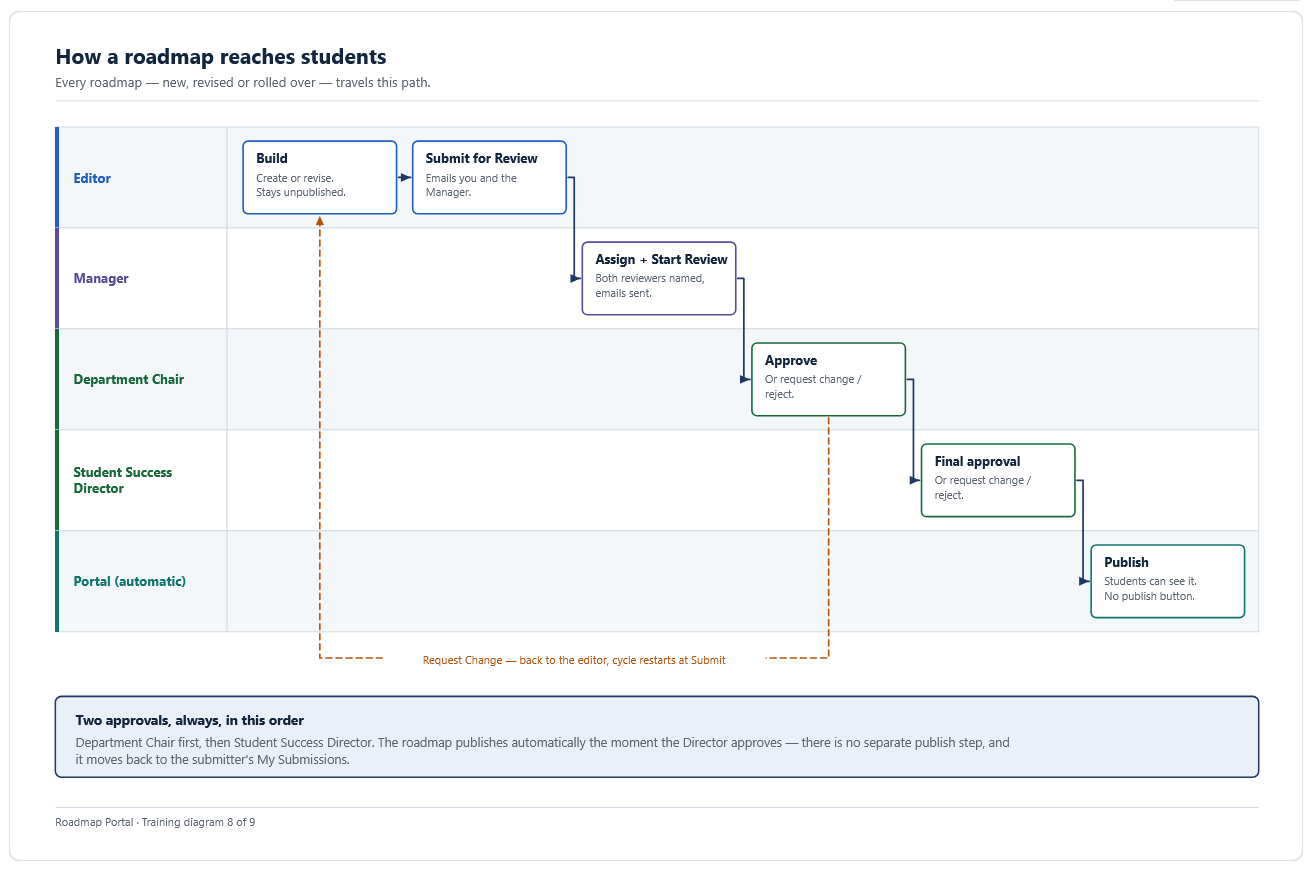
Roadmap approval and publishing workflow. The Editor builds and submits the roadmap for review. A Manager assigns and starts the review. The Department Chair provides the first approval, followed by final approval from the Student Success Director. The roadmap is then published automatically for students. If changes are requested, the roadmap returns to the Editor and the cycle restarts at Submit for Review.
Every roadmap travels this path, whether it is new, revised or rolled over.

WHAT TO TAKE FROM THIS

  • You sit between the editor and the two approvers. Nothing moves out of your lane until you assign and start.
  • The return path matters: a request for changes sends the roadmap back to the editor, and the cycle restarts at Submit.
  • Publication needs no action from you or anyone else.
  • All Submissions shows everything in the system, including drafts created by a catalog year rollover. 

TRY IT IN THE PORTAL

  1. Open All Submissions and count how many roadmaps are currently at each stage.
  2. Pick one that is mid-review and work out, from the approval chain, who it is waiting on.
  3. Find one that came back with a request for changes and read the reviewer's comment.

CHECK YOURSELF

The approval chain on the submission, which shows whether it is waiting on the Chair or the Director.

All Submissions.

You are ready when you can do all of this without looking it up

You have completed both tracks that apply to you. Keep Assigning Reviewers bookmarked.

Previous

Track: Editor

Next

Track: Reviewer

Office of the Provost


Edinburg

Student Services Executive Building 5.101
1201 W. University Dr.
Edinburg, TX 78539
Phone: (956) 665-2111
provost@utrgv.edu

Brownsville

Life & Health Sciences Building 2.402
One West University Blvd.
Brownsville, TX 78520
provost@utrgv.edu

Find UTRGV on Social Media


LIKE. FOLLOW. SUBSCRIBE. ADD.


UTRGV Trademark logo
  • CARES, CRRSAA and ARP Reporting
  • Site Policies
  • Required Links
  • Accreditation Statement
  • Fraud Reporting
  • Senate Bill 18
  • Clery Act Reports
  • Web Accessibility
  • Mental Health Resources
  • Sexual Misconduct Policy
  • Reporting Sexual Misconduct
  • Contact UTRGV
  • 1-844-ATUTRGV
  • Facebook
  • X Twitter
  • Instagram
  • LinkedIn
  • Academics
  • Admissions
  • Cost and Financial Aid
  • Student Life
  • Search Programs
  • First-Year Students
  • Transfer
  • International Students
  • Graduate Students
  • Current Students
  • Faculty Resources
  • Staff Resources
  • UTRGV Careers
  • Visit Campus
  • Directory
The University of Texas Rio Grande Valley