

 rotate(10)'/%3E%3Cpath d='M.038.113v.15l.15.088.15-.088v-.15L.188.025l-.15.088Z' stroke='%23c44900' stroke-width='.0375' transform='rotate(10)'/%3E%3C/svg%3E)
Introduction to the Roadmap Portal
A program roadmap is the semester-by-semester course plan a student follows to finish a degree — Year 1 through Year 4, Fall through Summer, for one specific program, concentration, campus and catalog year.
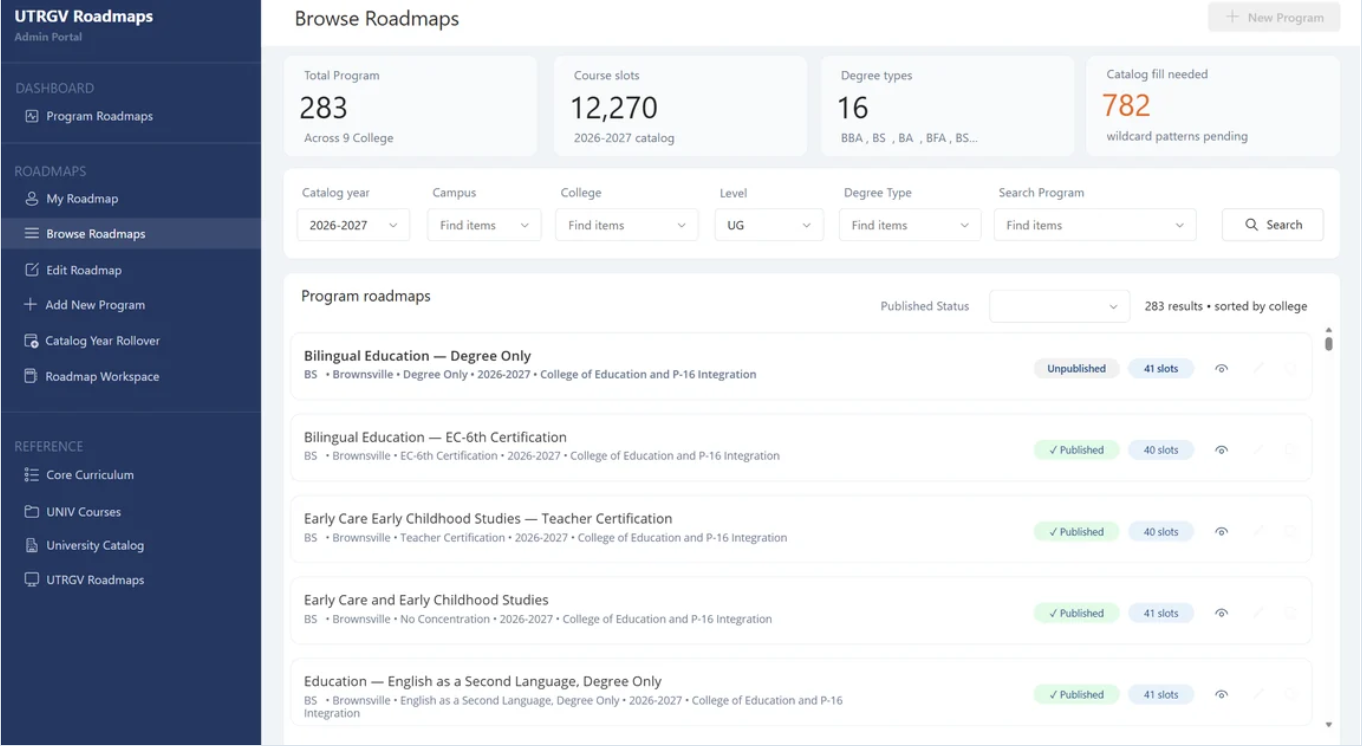
The Roadmap Portal is the single system where those roadmaps are built, reviewed, approved and published. It currently holds 283 roadmaps across 9 colleges and more than 12,000 course slots. Access is granted per person, and what you can do in the portal depends on your role.
Sign in with your UTRGV credentials. Need access, or have the wrong role? Email academicIT@utrgv.edu.
Start with your role
The portal has three access levels, plus a fourth capability for approvers. Pick the one that describes you.
View Only
You need to read roadmaps, not change them.
Editor
You build and revise roadmaps and send them for approval.
Manager
You do everything an Editor does, and you run reviews.
Reviewer
You are a Department Chair or Student Success Director.
Reviewer works differently from the other three. It is not an access level granted in advance—you become a reviewer when a Manager assigns you to a specific submission, and being assigned is what grants you access.
What each role can do
Access controls what you can change, not what you can see. Every role can view every roadmap.
| Task | View Only | Editor | Manager | Reviewer |
|---|---|---|---|---|
| Browse, filter and search all roadmaps | Yes | Yes | Yes | Yes |
| Open any roadmap read-only | Yes | Yes | Yes | Yes |
| See all reference tables | Yes | Yes | Yes | Yes |
| Edit an existing roadmap | Yes | Yes | ||
| Duplicate a roadmap | Yes | Yes | ||
| Add a New Roadmap | Yes | Yes | ||
| Run Catalog Year Rollover | Yes | Yes | ||
| Submit a roadmap for review | Yes | Yes | ||
| Assign reviewers and start a review | Yes | |||
| Approve, request change or reject | Yes |
Why the portal is straightforward to use
- Course choices come from approved lists. Requirements are drawn from the Core Curriculum table, the UNIV course list and the University Catalog for the roadmap's own catalog year, so a roadmap cannot quietly drift away from what the catalog approves.
- Nothing publishes without approval. Every roadmap passes through the Department Chair and the Student Success Director, and every decision and comment is recorded permanently.
- Everyone sees the same data. All reference tables and all roadmaps, published and unpublished, are visible to every user whatever their role.
- A year rolls forward in one action. Catalog Year Rollover copies a whole catalog year forward as drafts instead of rebuilding hundreds of roadmaps by hand.
- Similar roadmaps get copied, not rebuilt. Duplicate an existing roadmap to create a variant, then change only what differs.
- Editing is guarded. A roadmap opens read-only. You switch Make Editable on deliberately before anything can change.
How a roadmap reaches students
Every roadmap — new, revised or rolled over — travels the same path.
Editor
Build
Create or revise the roadmap.
Editor
Submit
Send it for review.
Manager
Assign
Name both reviewers, start the review.
Chair
First approval
Department Chair decides.
Director
Second approval
Student Success Director decides.
Automatic
Published
Students can see it.
There is no separate publish button. A roadmap publishes the moment the Student Success Director approves it. If changes are requested, it returns to the editor with the reviewer's comment and the cycle restarts at Submit.
Words you will see in the portal
| Term | What it means |
|---|---|
| Roadmap | The complete four-year plan for one program + concentration + campus + catalog year, with its own record and approval history. |
| Course slot | One row inside a semester — a position in the plan, not necessarily a named course. It may be one specific course, or a choice among several approved ones. |
| Requirement type | What kind of thing a slot is. There are five — see The Five Requirement Types. |
| Group type | The code shown on a slot row that reflects its requirement type — SPECIFIC, CORE_COURSES, UNIV or CHOOSE_N. |
| Flags | Quick markers on a slot row: Core, PREREQ, NOTE, ADV. |
| Catalog year | The academic year whose catalog the roadmap follows, for example 2026-2027. |
| Catalog fill needed | Slots still defined by a wildcard pattern rather than an explicit course list. |
| Published / Unpublished | Published means students can see it; unpublished means it is still in progress or awaiting approval. |
Where to go next
The pages in the Roadmaps Menu walk through each task screen by screen. If you are new to the portal, start with Signing In and Access.