
  • About Us
    • Our Team
    • Meet the Provost and Executive Vice President
    • Messages From the Provost
    • Organizational Chart
  • Faculty Resources
  • Contact Us
  • DIRECTORY
  • MAPS
  • MYUTRGV
  • NEWS
  • GIVE
UTRGV home
The University of Texas
Rio Grande Valley
  • DIRECTORY
  • MAPS
  • MYUTRGV
  • News
  • GIVE
Open Search Menu
Menu
UTRGV Trademark Logo
Office of the Provost
  • About Us
    ▼
    About Us Square placeholder image 300px
    • About Us
      • Our Team
      • Meet the Provost and Executive Vice President
      • Messages From the Provost
      • Organizational Chart
  • Faculty Resources
  • Contact Us

Browsing and Viewing Roadmaps

  1. Home
  2. Digital Solutions
  3. Roadmap Portal
  4. Browsing and Viewing Roadmaps
Digital Solutions Menu
Menu

Digital Solutions Menu

  • Reports and Dashboards
  • Roadmap Portal
    • Sign In and Access
    • Browsing and Viewing Roadmaps
    • Reference Tables
    • Editing a Roadmap
    • Adding a Course Requirement
    • The Five Requirement Types
    • Creating a New Roadmap
    • Catalog Year Rollover
    • Assigning Reviewers
    • Approving a Roadmap
    • Frequently Asked Questions
  • Roadmap Portal - Training
    • Onboarding: Start Here
    • Track: View Only
    • Track: Editor
    • Track: Manager
    • Track: Reviewer

Contact Us

academicIT@utrgv.edu


Browsing and Viewing Roadmaps

Find any roadmap, read the summary figures, and move through a four-year plan.

Read the summary figures

Four cards sit at the top of Browse Roadmaps and describe the catalog year you are filtered to.

Four summary cards at the top of Browse Roadmaps showing Total Program, Course slots, Degree types and Catalog fill needed.
Summary cards across the top of Browse Roadmaps.
Meaning of each Browse Roadmaps summary card
Card What it tells you
Total Program How many roadmaps exist, and across how many colleges.
Course slots Total slots defined across all roadmaps in the selected catalog year.
Degree types How many distinct degree types are represented, for example BBA, BS, BA, BFA.
Catalog fill needed Slots still defined by a wildcard pattern rather than an explicit course list. Treat this as the outstanding work queue.

Find a roadmap

Use the filter row, then click Search. You can combine any of the filters.

↗ Enlarge
Browse Roadmaps filter row with controls for catalog year, campus, college, level, degree type and program name, followed by a Search button.
Filter by catalog year, campus, college, level, degree type or program name.

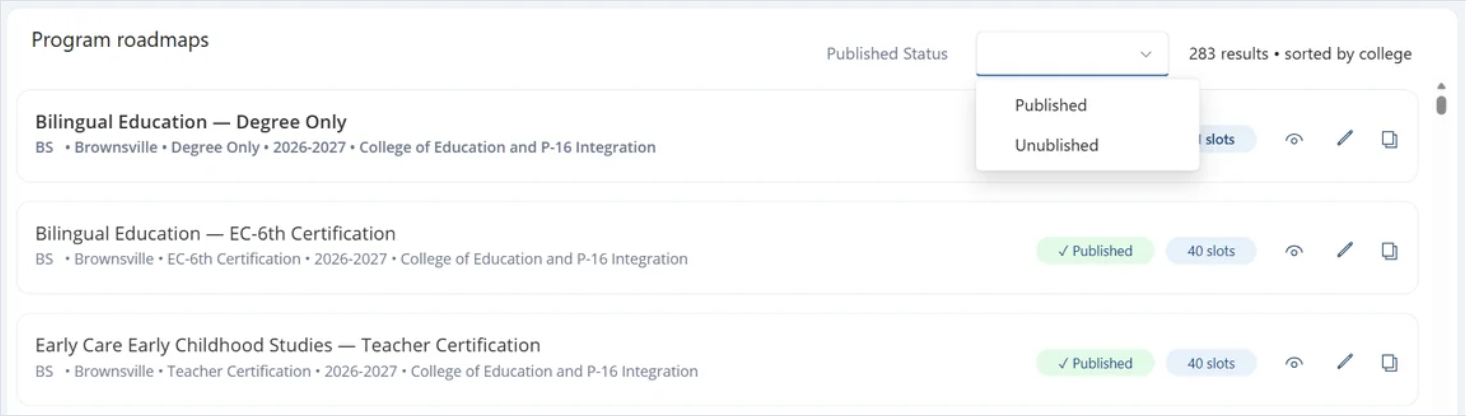
The Published Status dropdown on the results list narrows to published or unpublished roadmaps only. Leave it blank to see both.
↗ Enlarge
Program roadmaps results list with the Published Status dropdown open to show Published and Unpublished options. Each result row also contains eye, pencil and copy action icons.
Published Status filter, with the action icons on each result row.
Roadmap action icons and who can use them
Icon What it does Who sees it
Eye Open the roadmap read-only. Every role
Pencil Open the roadmap for editing. Editors and Managers
Copy Duplicate the roadmap into a new record. Editors and Managers

Open and browse a roadmap

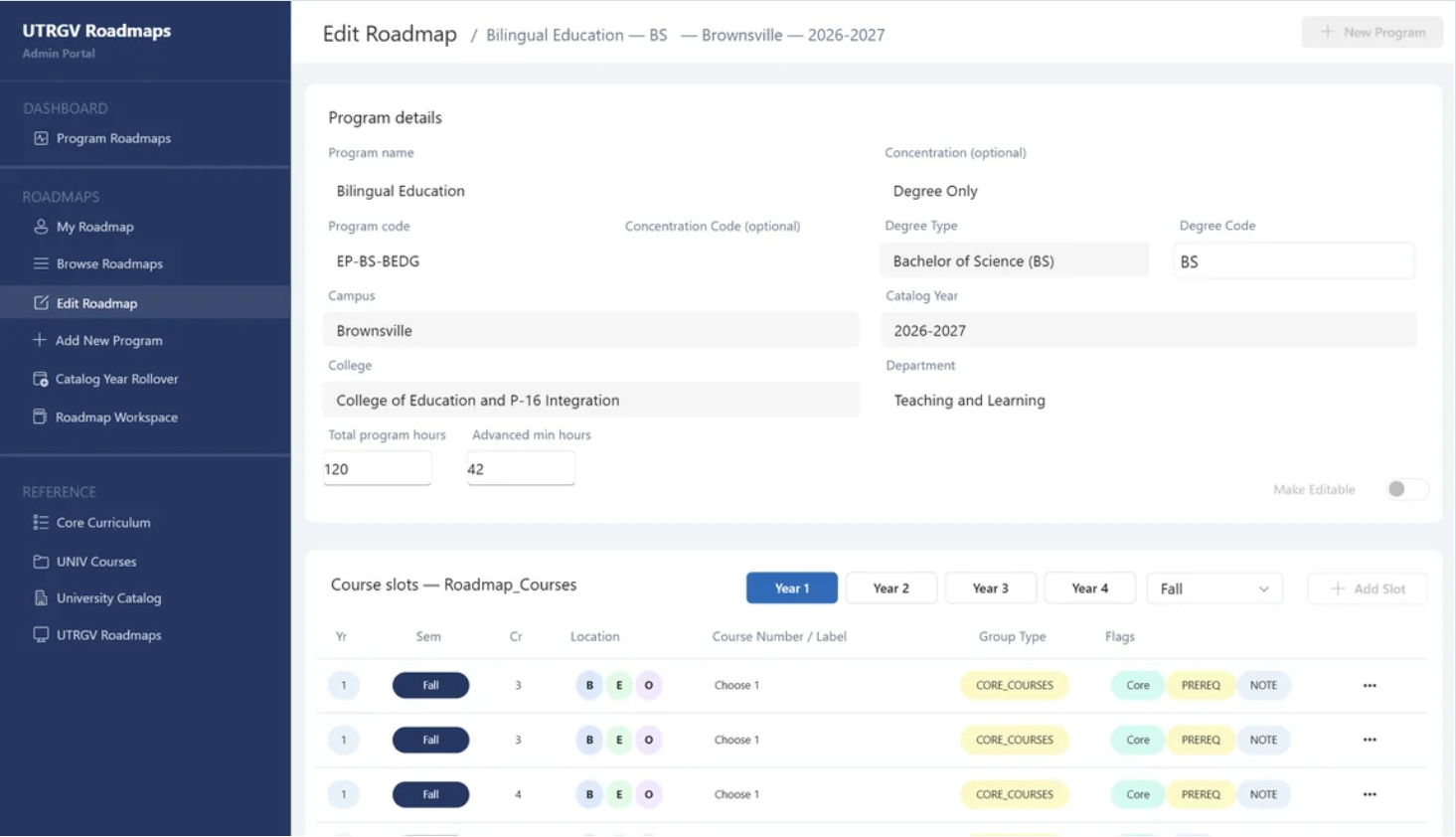
Click the eye icon on any result. The roadmap opens with Program details at the top and Course slots below.
↗ Enlarge
An open roadmap showing Program details at the top and Course slots below. Program details include the program name and code, degree information, campus, catalog year, college, department and program hours.
A roadmap opened read-only.

Program details shows the identifying and structural information for the program: program name and code, concentration and concentration code, degree type and degree code, campus, catalog year, college, department, total program hours, and advanced minimum hours.

Previous

Signing In and Access

Next

Reference Tables

Office of the Provost


Edinburg

Student Services Executive Building 5.101
1201 W. University Dr.
Edinburg, TX 78539
Phone: (956) 665-2111
provost@utrgv.edu

Brownsville

Life & Health Sciences Building 2.402
One West University Blvd.
Brownsville, TX 78520
provost@utrgv.edu

Find UTRGV on Social Media


LIKE. FOLLOW. SUBSCRIBE. ADD.


UTRGV Trademark logo
  • CARES, CRRSAA and ARP Reporting
  • Site Policies
  • Required Links
  • Accreditation Statement
  • Fraud Reporting
  • Senate Bill 18
  • Clery Act Reports
  • Web Accessibility
  • Mental Health Resources
  • Sexual Misconduct Policy
  • Reporting Sexual Misconduct
  • Contact UTRGV
  • 1-844-ATUTRGV
  • Facebook
  • X Twitter
  • Instagram
  • LinkedIn
  • Academics
  • Admissions
  • Cost and Financial Aid
  • Student Life
  • Search Programs
  • First-Year Students
  • Transfer
  • International Students
  • Graduate Students
  • Current Students
  • Faculty Resources
  • Staff Resources
  • UTRGV Careers
  • Visit Campus
  • Directory
The University of Texas Rio Grande Valley