

 rotate(10)'/%3E%3Cpath d='M.038.113v.15l.15.088.15-.088v-.15L.188.025l-.15.088Z' stroke='%23c44900' stroke-width='.0375' transform='rotate(10)'/%3E%3C/svg%3E)
Track: Reviewer
20 minutes, for Department Chairs and Student Success Directors. This is the only training you need.
What to take from this
- Everything you need is under Roadmap Workspace › My Approvals.
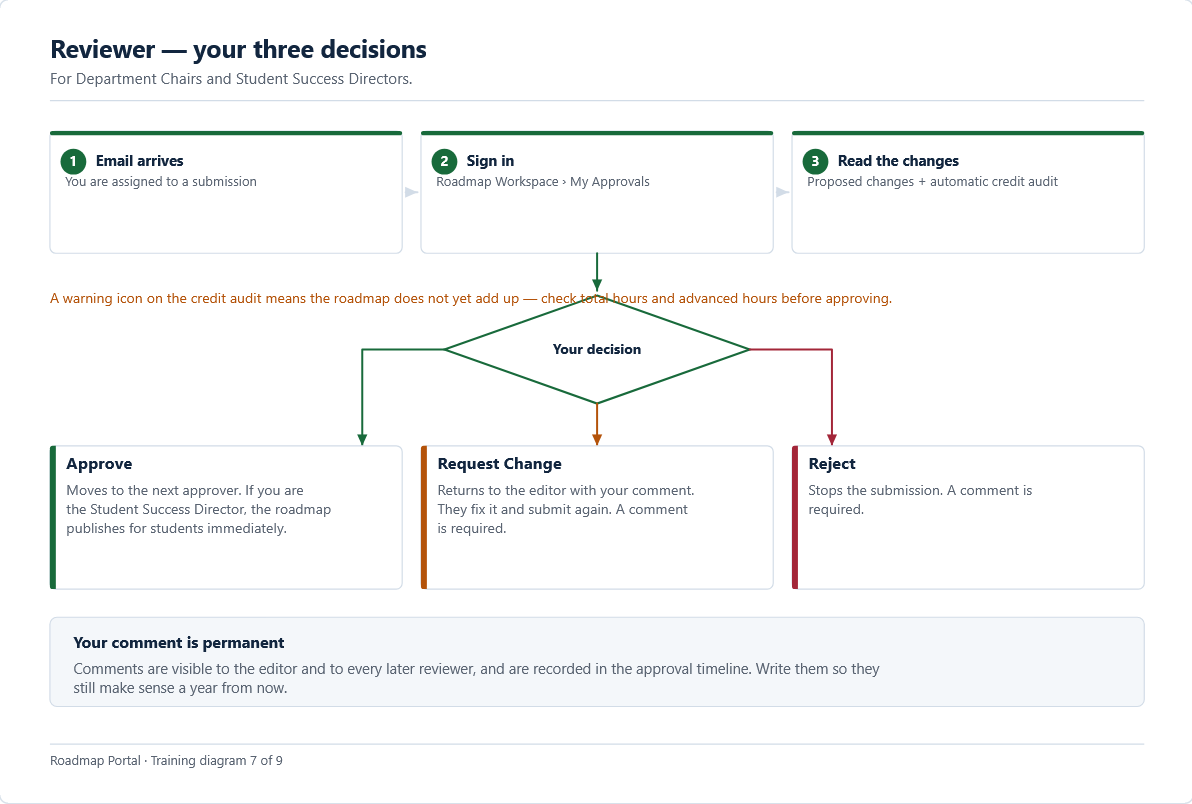
- Proposed changes lists exactly what the editor added or altered — you do not have to hunt for the difference.
- The automatic credit audit checks total hours, advanced hours and outstanding catalog fill. A warning icon means the roadmap does not yet add up.
- Request Change and Reject both require a comment. Your comment is visible to the editor and to every later reviewer, and is recorded permanently.
- If you are the Student Success Director, approving publishes the roadmap for students immediately.
Try it in the portal
- Sign in and open Roadmap Workspace › My Approvals.
- If a roadmap is waiting, read the Proposed changes list and check the credit audit figures against the program's requirements before deciding.
- Read the approval timeline at the foot of the page to see who has already acted.
- If nothing is waiting, re-read the diagram and note which two decisions require a comment.
Check yourself
Request Change and Reject. Approve does not, though a comment is still recorded if you leave one.
Not without resolving it. A warning means the roadmap does not meet the requirement — request changes with a comment explaining what is short.
The roadmap publishes for students immediately. There is no further step and no publish button.
WHAT TO TAKE FROM THIS
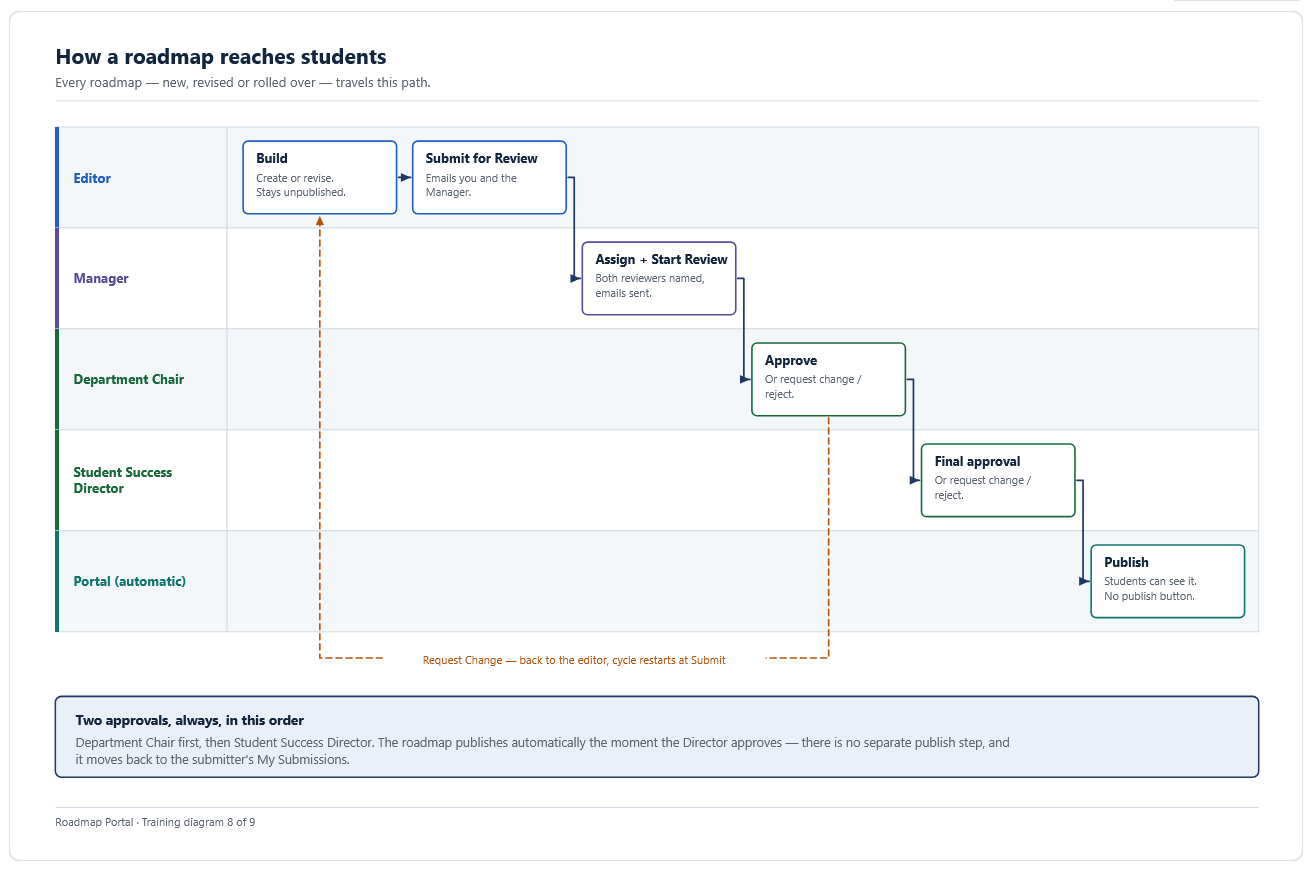
- Approvals happen in a fixed order: Department Chair first, then Student Success Director.
- A Manager assigned you and started the review. The editor built the roadmap before that.
- Requesting changes returns the roadmap to the editor and restarts the cycle at Submit — it does not cancel the work.
- Approval by the Director publishes the roadmap automatically.
TRY IT IN THE PORTAL
- Open a submission and find the approval chain across the top of the page.
- Identify which position you occupy and who, if anyone, has already acted.
- Read the approval timeline at the foot of the page from the bottom up.
CHECK YOURSELF
No. It moves to the Student Success Director, whose approval publishes it.
No. The roadmap returns to them with your comment and the cycle restarts at Submit.
You are ready when you can do all of this without looking it up
That is the whole of your role. Keep Approving a Roadmap bookmarked.