
  • About Us
    • Our Team
    • Meet the Provost and Executive Vice President
    • Messages From the Provost
    • Organizational Chart
  • Faculty Resources
  • Contact Us
  • DIRECTORY
  • MAPS
  • MYUTRGV
  • NEWS
  • GIVE
UTRGV home
The University of Texas
Rio Grande Valley
  • DIRECTORY
  • MAPS
  • MYUTRGV
  • News
  • GIVE
Open Search Menu
Menu
UTRGV Trademark Logo
Office of the Provost
  • About Us
    ▼
    About Us Square placeholder image 300px
    • About Us
      • Our Team
      • Meet the Provost and Executive Vice President
      • Messages From the Provost
      • Organizational Chart
  • Faculty Resources
  • Contact Us

Assigning Reviewers

  1. Home
  2. Digital Solutions
  3. Roadmap Portal
  4. Assigning Reviewers
Digital Solutions Menu
Menu

Digital Solutions Menu

  • Reports and Dashboards
  • Roadmap Portal
    • Sign In and Access
    • Browsing and Viewing Roadmaps
    • Reference Tables
    • Editing a Roadmap
    • Adding a Course Requirement
    • The Five Requirement Types
    • Creating a New Roadmap
    • Catalog Year Rollover
    • Assigning Reviewers
    • Approving a Roadmap
    • Frequently Asked Questions
  • Roadmap Portal - Training
    • Onboarding: Start Here
    • Track: View Only
    • Track: Editor
    • Track: Manager
    • Track: Reviewer

Contact Us

academicIT@utrgv.edu


Assigning Reviewers

For Managers: pick up a submission, assign both approvers, and start the review.

Pick up a new submission

When an Editor submits a roadmap you receive an email, and the submission appears as In Review under Roadmap Workspace › My Submissions.
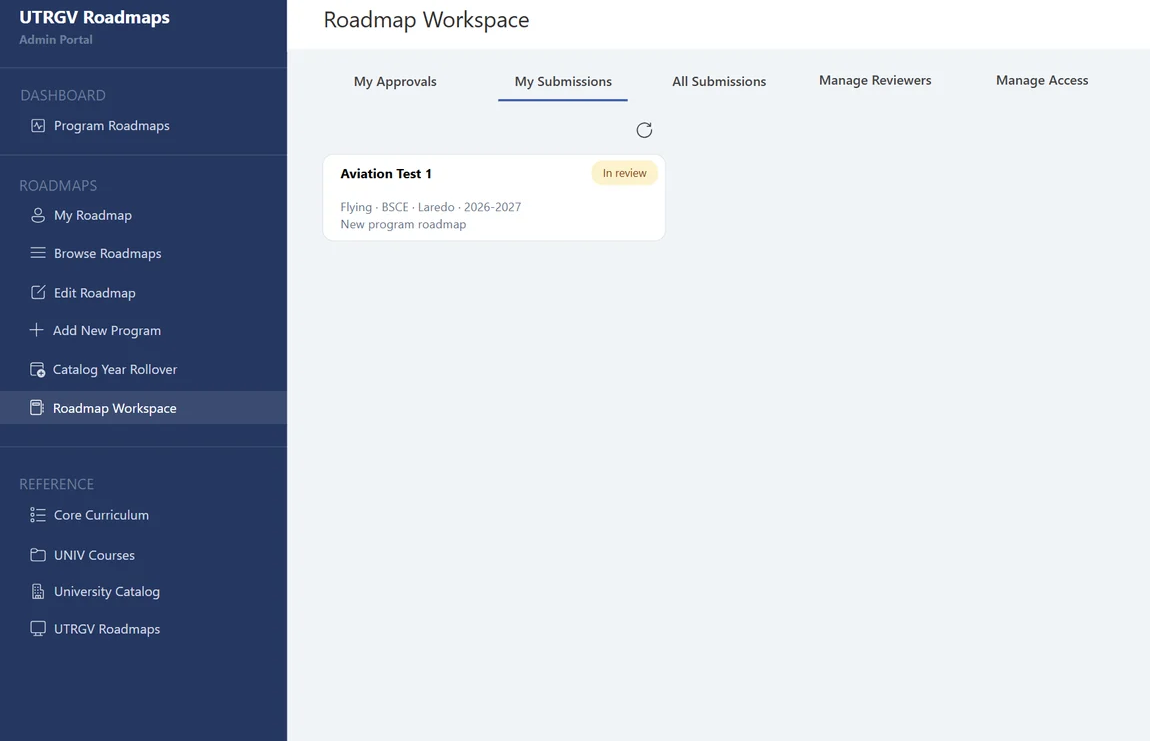
Roadmap Workspace with the My Submissions tab selected. A submission named Aviation Test 1 appears with an In review status.
A new submission showing as In Review.
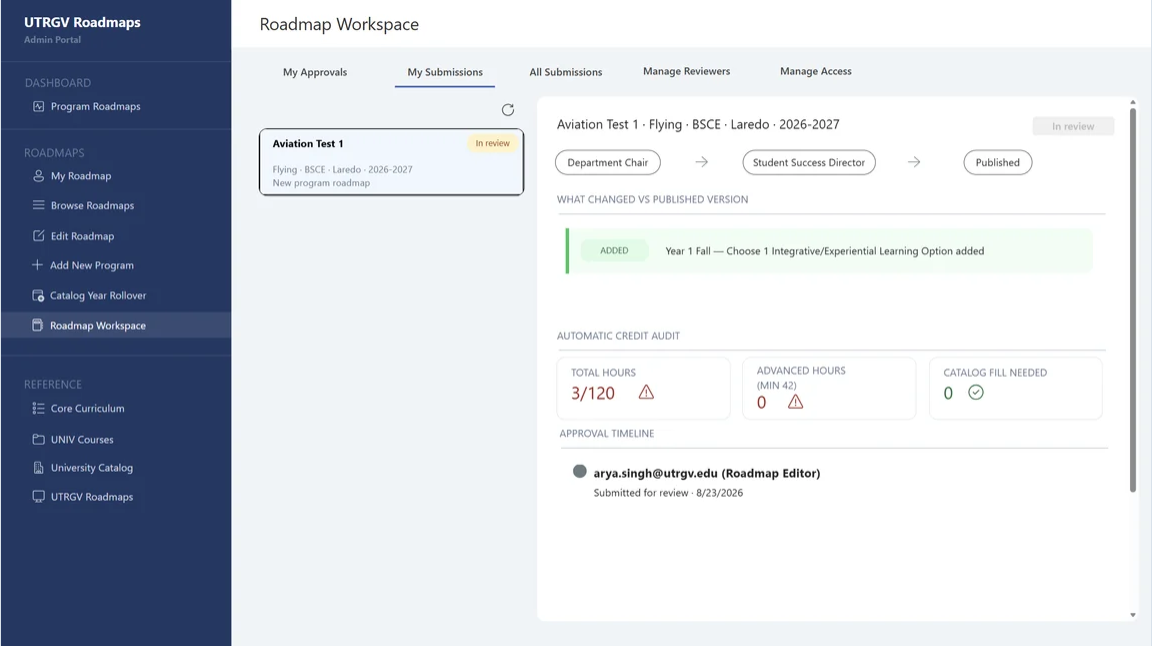
Roadmap Workspace submission detail for Aviation Test 1. The panel shows the Department Chair and Student Success Director approval stages, a proposed change, an automatic credit audit and the approval timeline.
Submission detail.

Assign reviewers and start the review

  1. Go to the Manage Reviewers tab.
  2. Select the submission from the list on the left. Submissions needing attention are marked Need assigning.
  3. Click Choose Reviewer and assign the reviewers. Every roadmap requires two approvals: the Department Chair of the program in question, and the Student Success Director.
  4. When both reviewers are assigned, click Start Review.
  5. The button greys out and reads In Progress. That is your confirmation that the assignment succeeded and notification emails have gone to the reviewers.
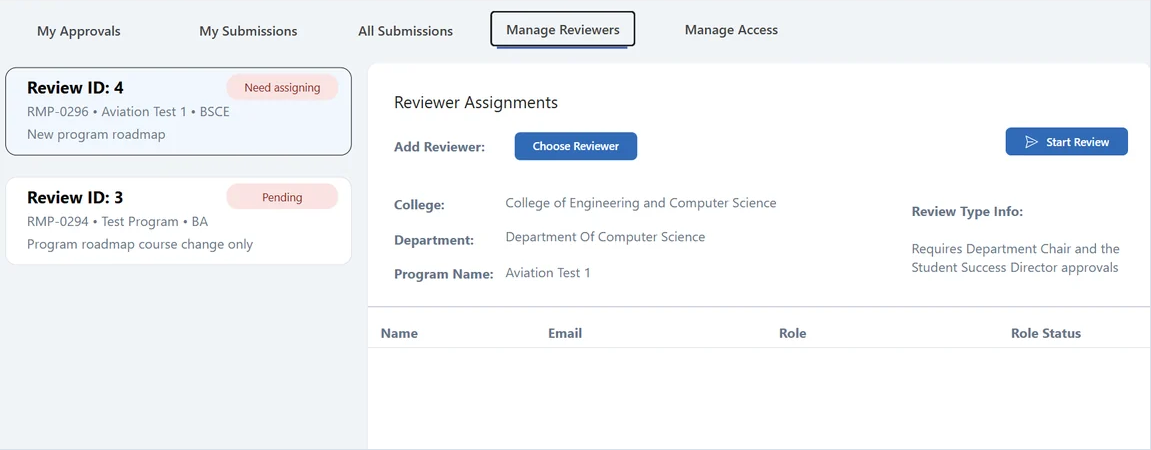
Manage Reviewers tab before reviewer assignment. A submission is marked Need assigning, and the Reviewer Assignments panel provides Choose Reviewer and Start Review buttons.
Manage Reviewers, before assignment.
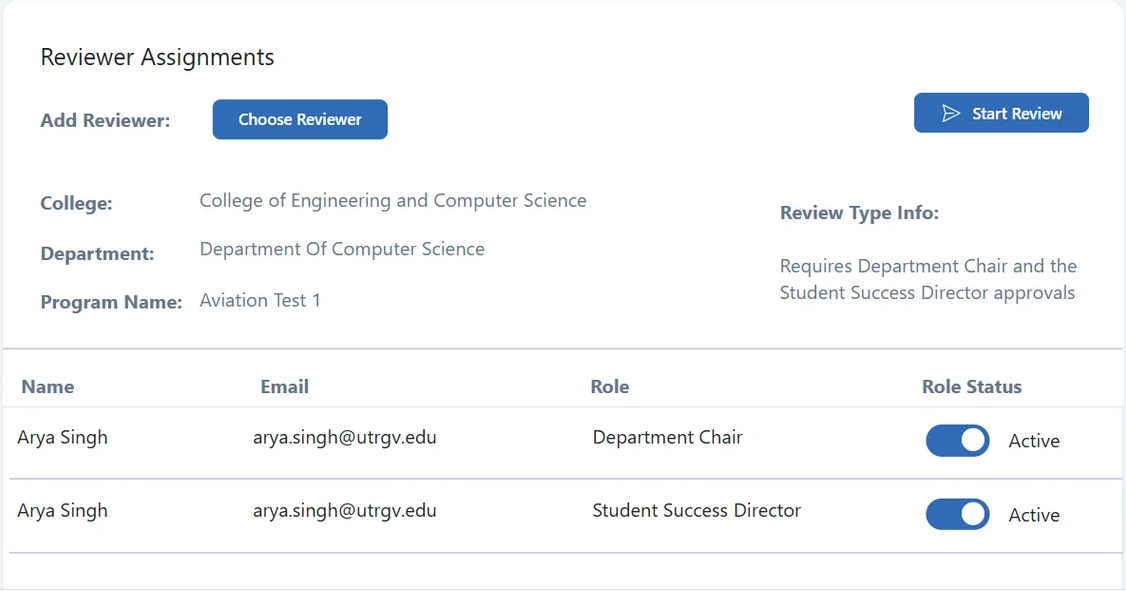
Reviewer Assignments panel showing an active Department Chair and an active Student Success Director assigned to the submission. The Start Review button is available.
Reviewers assigned, ready to start.
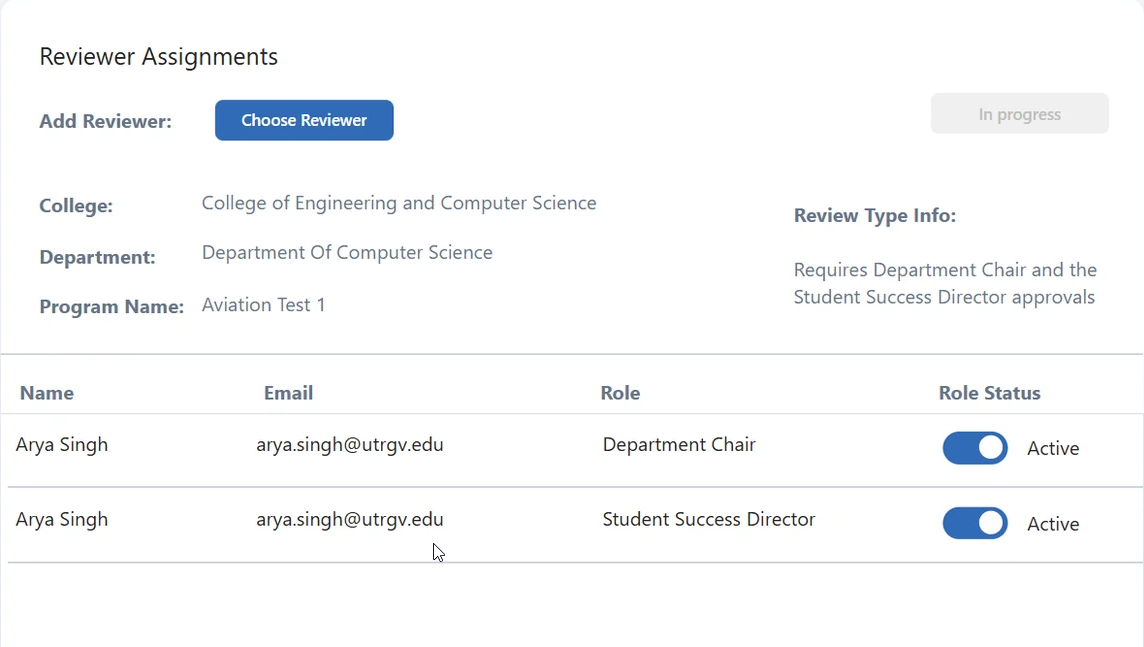
Reviewer Assignments panel after the review starts. Both reviewers remain active and the Start Review button is disabled and labeled In progress.
Start Review greyed out as In Progress—the assignment worked.
Reviewers need nothing set up in advance. Assigning someone as a reviewer is what gives them access to that submission.

Previous

Catalog Year Rollover

Next

Approving a Roadmap

Office of the Provost


Edinburg

Student Services Executive Building 5.101
1201 W. University Dr.
Edinburg, TX 78539
Phone: (956) 665-2111
provost@utrgv.edu

Brownsville

Life & Health Sciences Building 2.402
One West University Blvd.
Brownsville, TX 78520
provost@utrgv.edu

Find UTRGV on Social Media


LIKE. FOLLOW. SUBSCRIBE. ADD.


UTRGV Trademark logo
  • CARES, CRRSAA and ARP Reporting
  • Site Policies
  • Required Links
  • Accreditation Statement
  • Fraud Reporting
  • Senate Bill 18
  • Clery Act Reports
  • Web Accessibility
  • Mental Health Resources
  • Sexual Misconduct Policy
  • Reporting Sexual Misconduct
  • Contact UTRGV
  • 1-844-ATUTRGV
  • Facebook
  • X Twitter
  • Instagram
  • LinkedIn
  • Academics
  • Admissions
  • Cost and Financial Aid
  • Student Life
  • Search Programs
  • First-Year Students
  • Transfer
  • International Students
  • Graduate Students
  • Current Students
  • Faculty Resources
  • Staff Resources
  • UTRGV Careers
  • Visit Campus
  • Directory
The University of Texas Rio Grande Valley