  • About Us
    • Our Team
    • Meet the Provost and Executive Vice President
    • Messages From the Provost
    • Organizational Chart
  • Faculty Resources
  • Contact Us
  • DIRECTORY
  • MAPS
  • MYUTRGV
  • NEWS
  • GIVE
UTRGV home
The University of Texas
Rio Grande Valley
  • DIRECTORY
  • MAPS
  • MYUTRGV
  • News
  • GIVE
Open Search Menu
Menu
UTRGV Trademark Logo
Office of the Provost
  • About Us
    ▼
    About Us Square placeholder image 300px
    • About Us
      • Our Team
      • Meet the Provost and Executive Vice President
      • Messages From the Provost
      • Organizational Chart
  • Faculty Resources
  • Contact Us

Editing a Roadmap

  1. Home
  2. Digital Solutions
  3. Roadmap Portal
  4. Editing a Roadmap
Digital Solutions Menu
Menu

Digital Solutions Menu

  • Reports and Dashboards
  • Roadmap Portal
    • Sign In and Access
    • Browsing and Viewing Roadmaps
    • Reference Tables
    • Editing a Roadmap
    • Adding a Course Requirement
    • The Five Requirement Types
    • Creating a New Roadmap
    • Catalog Year Rollover
    • Assigning Reviewers
    • Approving a Roadmap
    • Frequently Asked Questions
  • Roadmap Portal - Training
    • Onboarding: Start Here
    • Track: View Only
    • Track: Editor
    • Track: Manager
    • Track: Reviewer

Contact Us

academicIT@utrgv.edu


Editing a Roadmap

For Editors and Managers: open a roadmap, inspect a slot, and save your work.

Open a roadmap for editing

  1. Find the roadmap on Browse Roadmaps and click the pencil icon.
  2. The roadmap opens with Program details at the top and the Course slots table below.
  3. Switch Make Editable on. Until you do, the roadmap is presented read-only—a deliberate guard against accidental edits.
  4. Use the Year 1–Year 4 tabs and the semester dropdown to reach the semester you want to change.
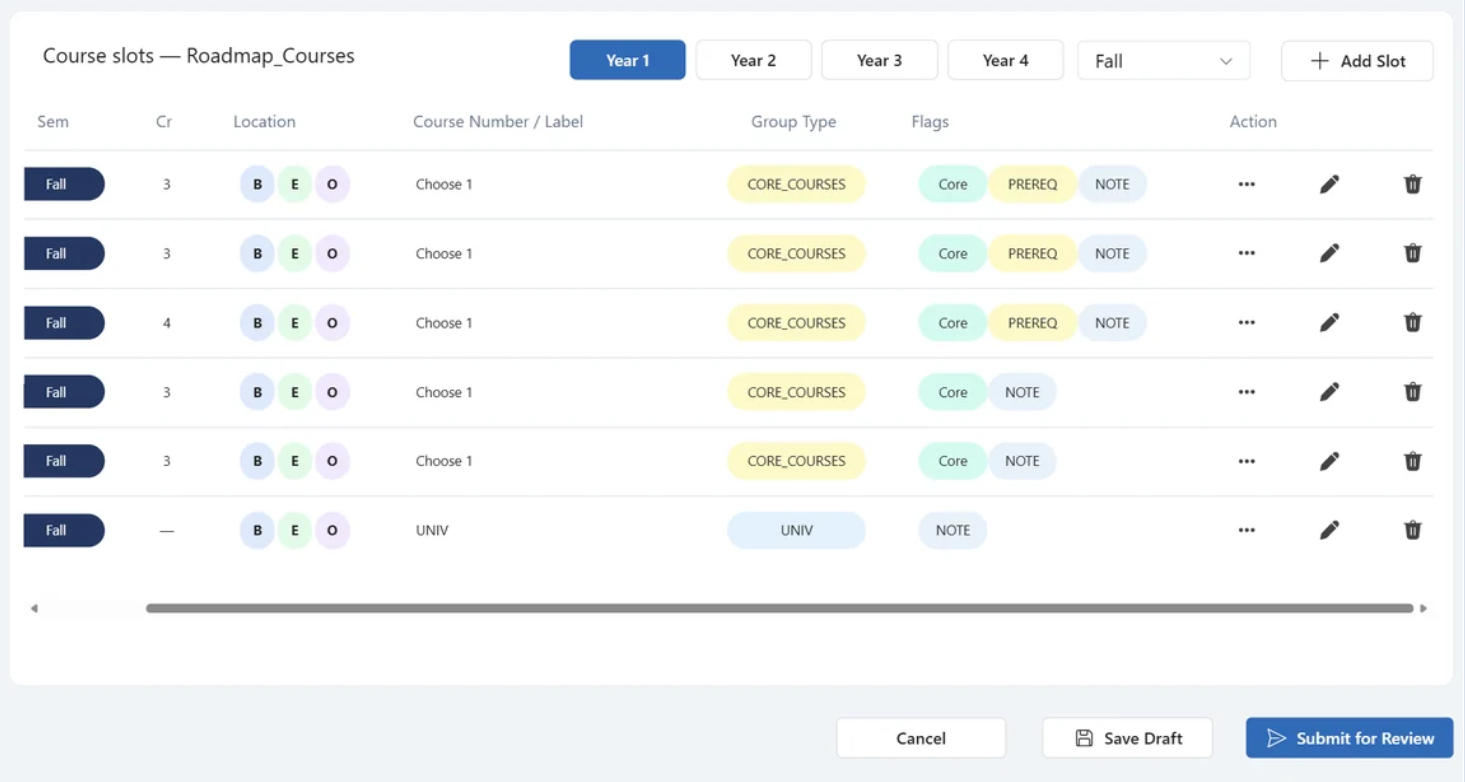
  5. Scroll the slot table to the right using the horizontal scrollbar at its foot to reveal the action icons.
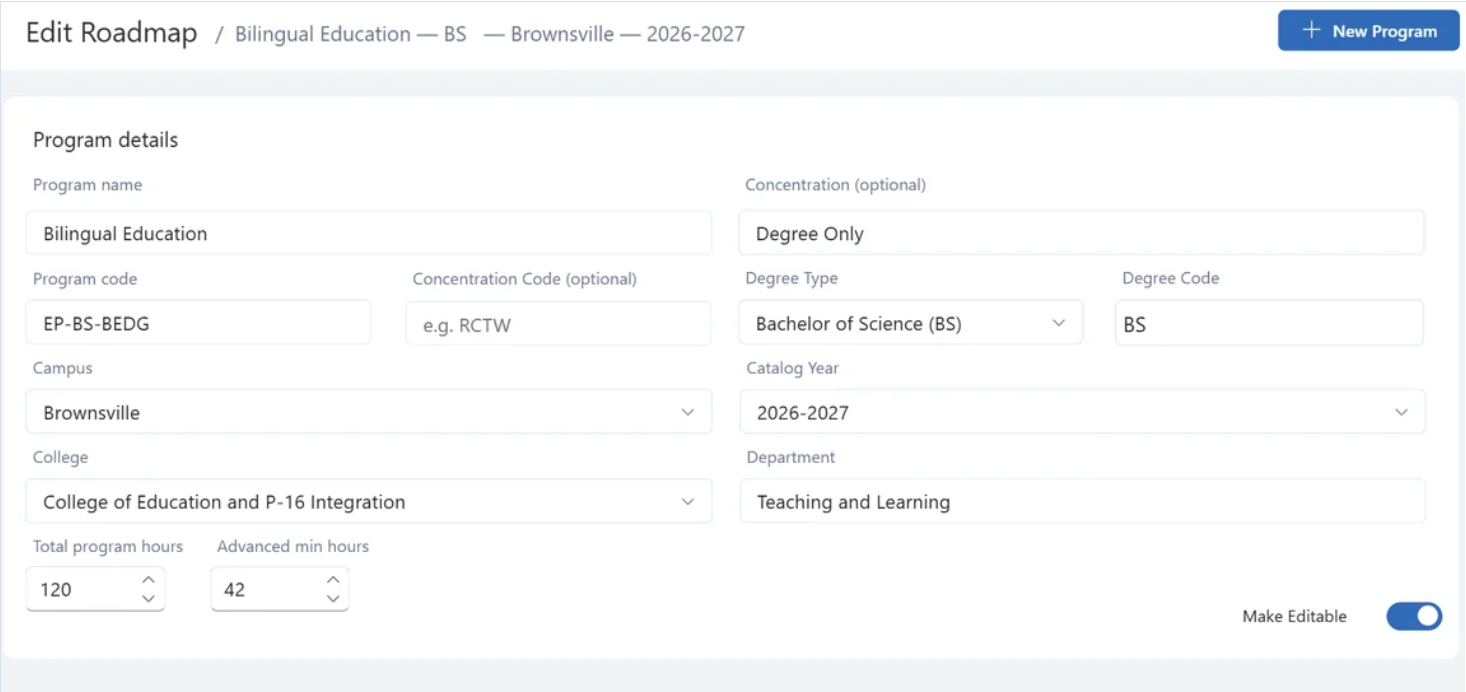
Edit Roadmap screen showing program details for a Bilingual Education degree-only roadmap and the Make Editable toggle at the lower right.
A roadmap open for editing.
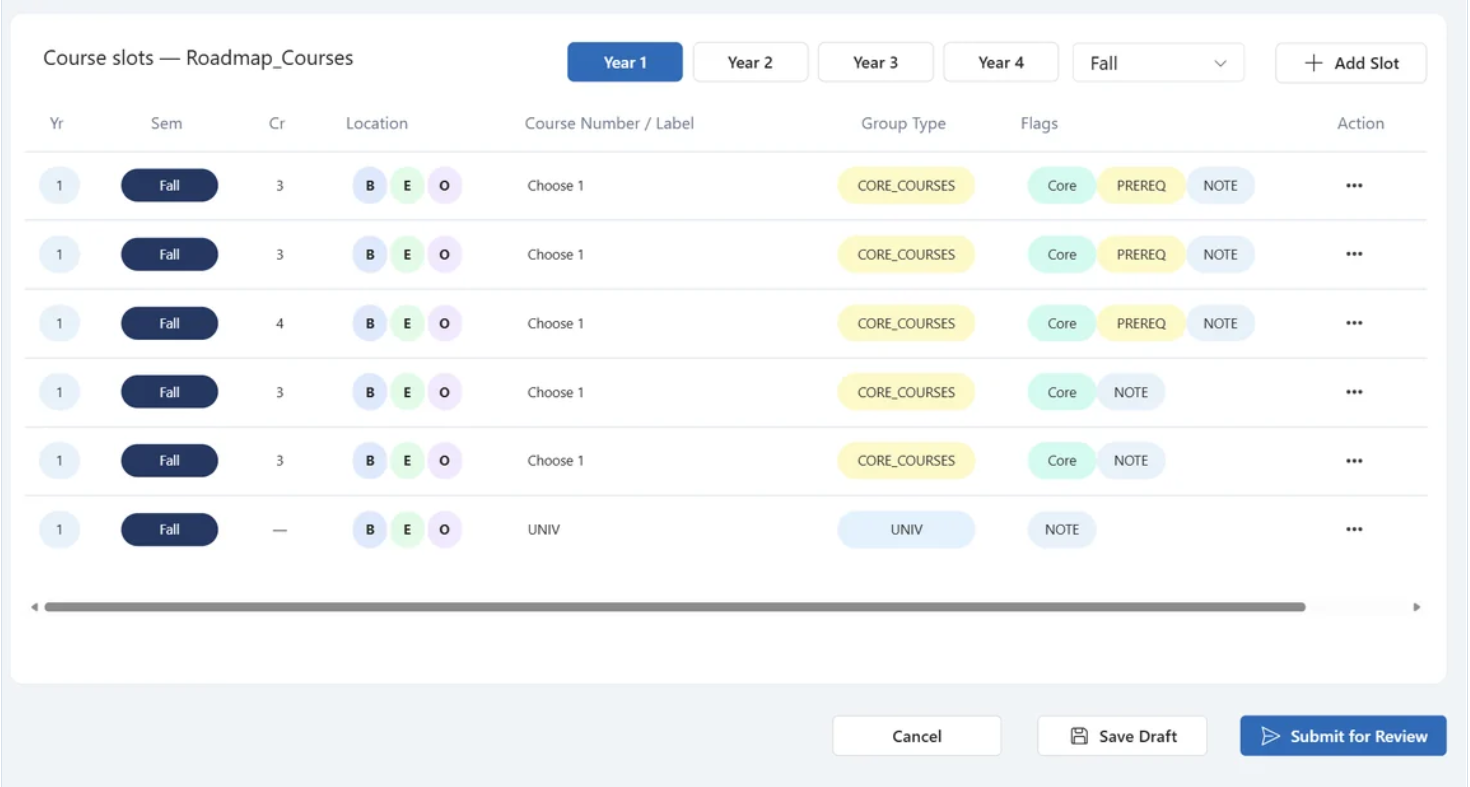
Course slots table showing year and semester controls, course-slot rows, a horizontal scrollbar, action icons, and the Cancel, Save Draft and Submit for Review buttons.
The Course slots table and its action controls.
Toggling back. You can switch Make Editable off at any time to return to a read-only presentation. Whether you can switch it back on depends on your access level.

Actions on a slot row

Editable Course slots table with three-dots, pencil and trash-can action icons displayed on each slot row. Cancel, Save Draft and Submit for Review buttons appear beneath the table.
Slot rows with the action icons revealed, and the save buttons beneath.
Slot row action icons and what each action does
Icon What it does
Three dots Open the slot detail panel. Read-only; safe to click.
Pencil Open the requirement wizard to change this slot. See Adding a Course Requirement.
Trash can Delete the slot. There is no undo.

Inspect a slot before you change it

Click the three dots on any slot row. A panel opens with four tabs. Nothing here can be changed—it is the fastest way to understand what a slot currently does.
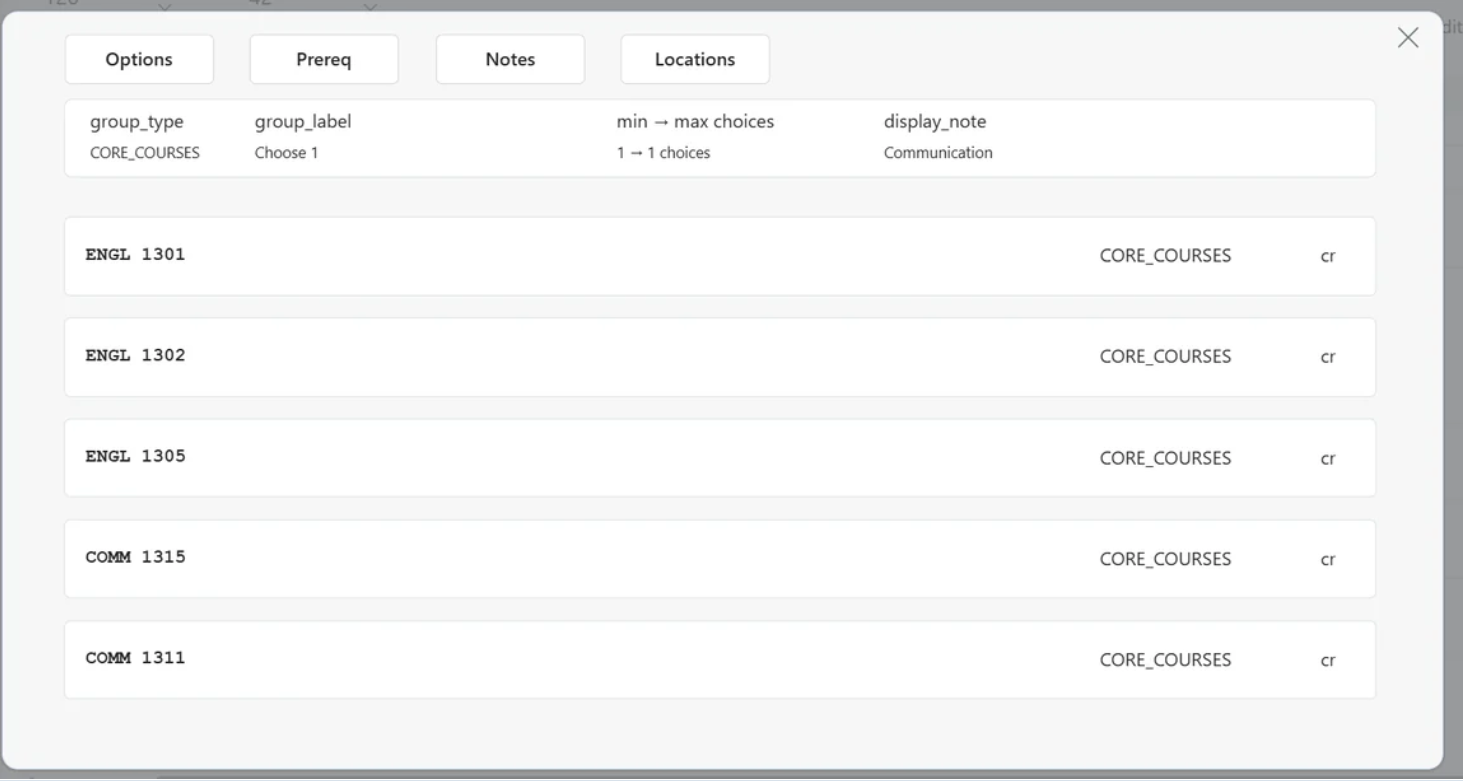
Read-only slot detail panel with Options, Prereq, Notes and Locations tabs. The Options tab shows a CORE_COURSES group labeled Choose 1, a range of one to one choices, a Communication display note and five approved courses.
Slot detail, Options tab. This slot asks the student to choose 1 of 5 approved Communication core courses.
Slot detail tabs and the information shown on each tab
Tab What it shows
Options The default tab. Group type, choice label, minimum and maximum choices, the display note, and every course a student may choose from.
Prereq Any prerequisites attached to the courses in this slot.
Notes Notes written for students about this slot.
Locations The campuses where the slot is offered, and the modality.

Saving your work

Roadmap buttons and what happens when each button is selected
Button What happens
Save Draft Keeps your work and leaves the roadmap unpublished. Use this whenever you are stopping partway.
Submit for Review Sends the roadmap into the approval workflow. Use only when the roadmap is complete.
Cancel Discards every change made since you opened the roadmap and returns you to the list.

Duplicate instead of rebuilding

When a new roadmap is close to one that already exists—a different concentration, a different campus—copy it rather than rebuilding it.

  1. Find the existing roadmap on Browse Roadmaps.
  2. Click the copy icon on its row. A new record is created with the same course slots.
  3. Open the new record with the pencil icon and change only what differs.

Previous

Reference Tables

Next

Adding a Course Requirement

Office of the Provost


Edinburg

Student Services Executive Building 5.101
1201 W. University Dr.
Edinburg, TX 78539
Phone: (956) 665-2111
provost@utrgv.edu

Brownsville

Life & Health Sciences Building 2.402
One West University Blvd.
Brownsville, TX 78520
provost@utrgv.edu

Find UTRGV on Social Media


LIKE. FOLLOW. SUBSCRIBE. ADD.


UTRGV Trademark logo
  • CARES, CRRSAA and ARP Reporting
  • Site Policies
  • Required Links
  • Accreditation Statement
  • Fraud Reporting
  • Senate Bill 18
  • Clery Act Reports
  • Web Accessibility
  • Mental Health Resources
  • Sexual Misconduct Policy
  • Reporting Sexual Misconduct
  • Contact UTRGV
  • 1-844-ATUTRGV
  • Facebook
  • X Twitter
  • Instagram
  • LinkedIn
  • Academics
  • Admissions
  • Cost and Financial Aid
  • Student Life
  • Search Programs
  • First-Year Students
  • Transfer
  • International Students
  • Graduate Students
  • Current Students
  • Faculty Resources
  • Staff Resources
  • UTRGV Careers
  • Visit Campus
  • Directory
The University of Texas Rio Grande Valley