
 rotate(10)'/%3E%3Cpath d='M.038.113v.15l.15.088.15-.088v-.15L.188.025l-.15.088Z' stroke='%23c44900' stroke-width='.0375' transform='rotate(10)'/%3E%3C/svg%3E)
Approving a Roadmap
For Department Chairs and Student Success Directors: how to review a submission.
Getting to your queue
You will receive an email when a roadmap is assigned to you. Being assigned is what grants you access—there is nothing to set up beforehand.
- Sign in at utrgv.edu/RoadmapPortal.
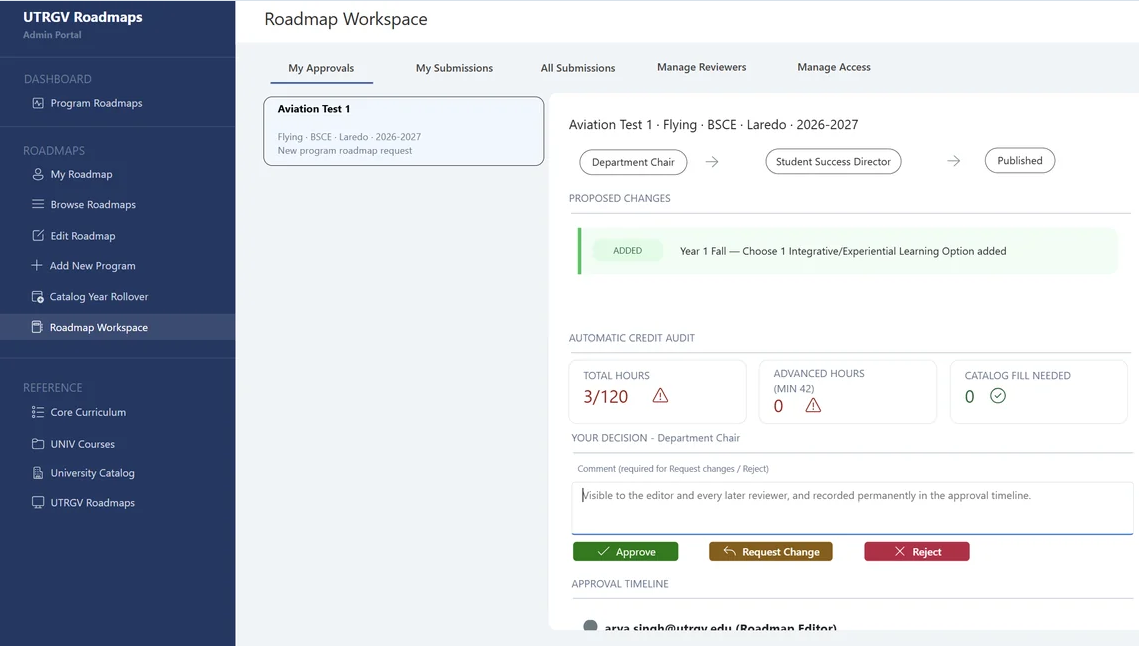
- Go to Roadmap Workspace › My Approvals.
- Select the roadmap from the list on the left.
- Review what has changed and check the automatic credit audit.
- Enter a comment if you are requesting changes or rejecting—it is required for both—then click Approve, Request Change or Reject.
What the screen gives you
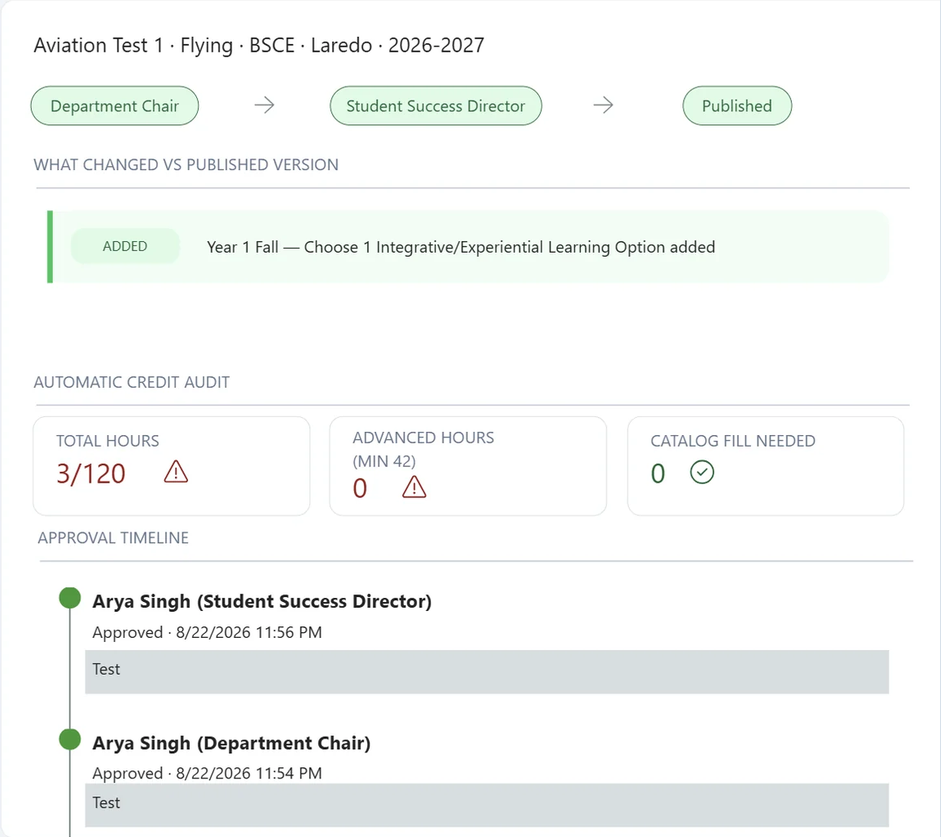
- The approval chain across the top—Department Chair, then Student Success Director, then Published—showing where the roadmap currently sits.
- Proposed changes, listing exactly what the editor added or altered.
- Automatic credit audit—total hours against the program requirement, advanced hours against the minimum, and any catalog fill still outstanding. A warning icon means the roadmap does not yet add up.
- Approval timeline at the foot of the page, recording every action taken so far and by whom.
Your three decisions
| Decision | What happens |
|---|---|
| Approve | The roadmap moves to the next approver. If you are the Student Success Director, it publishes immediately. |
| Request Change | Returns to the editor with your comment. A comment is required. |
| Reject | Stops the submission. A comment is required. |
After the final approval
There is no separate publish button. As soon as the Student Success Director approves, the roadmap publishes for student viewing and moves back to the submitter's My Submissions.