

 rotate(10)'/%3E%3Cpath d='M.038.113v.15l.15.088.15-.088v-.15L.188.025l-.15.088Z' stroke='%23c44900' stroke-width='.0375' transform='rotate(10)'/%3E%3C/svg%3E)
Quick formatting tips for Word
Steps to add pagination to your MS Word manuscript
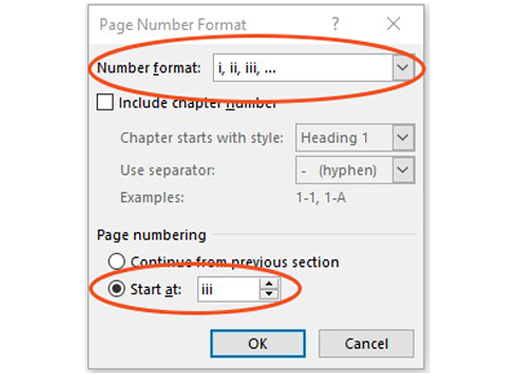
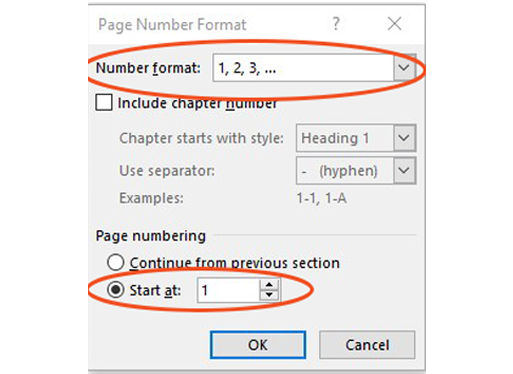
UTRGV Formatting Guidelines state pagination begins on the Abstract page, the manuscript's 4th page. In order to start pagination on your thesis or dissertation on a page other than the first page of the manuscript, you will need to create separate sections in the draft. This guide has step-by-step instructions. It is recommended to add pagination before adding blank pages between Preliminary Pages.
You will need to follow these instructions twice, once for the Preliminary Pages and once starting at Chapter I. Keep in mind that Arabic numerals start on Chapter I and continue consecutively to the end of your thesis or dissertation.
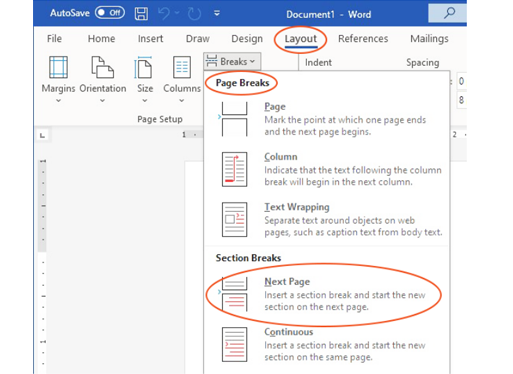
STEP 1: CREATE SECTION BREAKS.
- Place your cursor on the Copyright page, after the text.
- From the Menu, select “Layout”, then select “Breaks”, followed by “Page Breaks” and then “Next Page”. These section breaks are only needed before the Abstract page and before the first page of Chapter I.
- These section breaks are only needed before the Abstract page and before the first page of Chapter I.
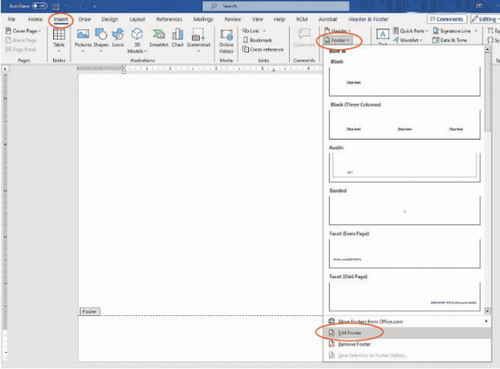
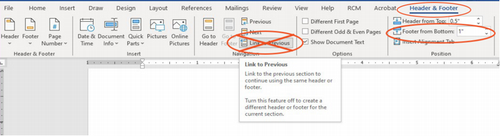
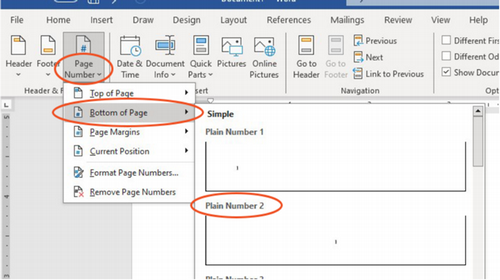
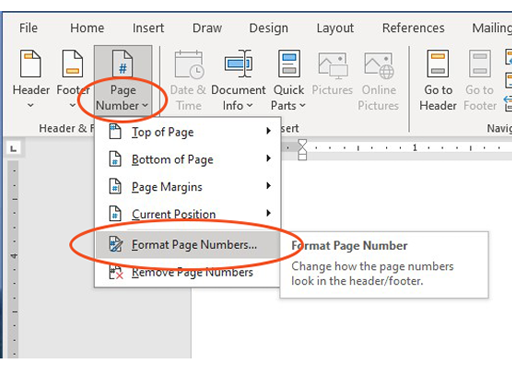
STEP 4: FORMAT PAGE NUMBERS. Still from the Header & Footer tab, click “Page Number” on the left side of the ribbon. In the drop down menu, click “Bottom of Page” then select Plain Number 2 (per
UTRGV guidelines).
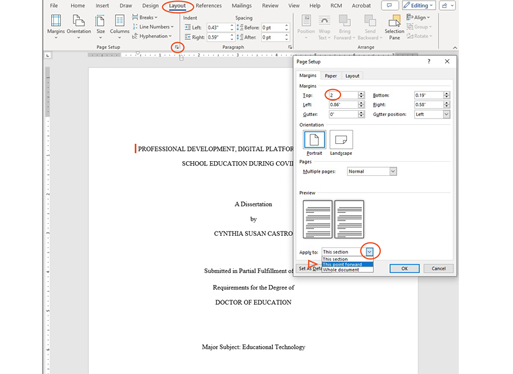
Adjusting Margins in MS Word
- TITLE
- COMMITTEE
- ABSTRACT
- DEDICATION
- ACKNOWLEDGMENTS
- TABLE OF CONTENTS
- LIST OF TABLES
- LIST OF FIGURES
- CHAPTER #/TITLE
- REFERENCES
- APPENDIX
- VITA
Solving orphan line problems
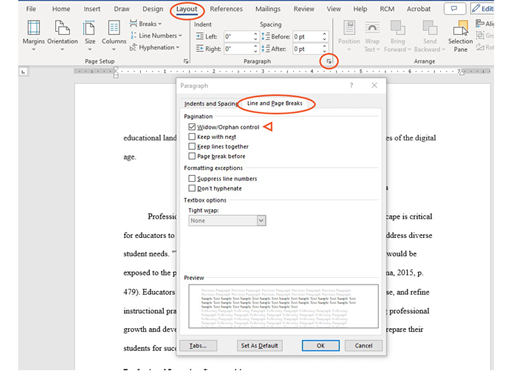
UTRGV guidelines prohibit orphan/widow lines. An orphan line is one line of text that sits by itself at the bottom of the page. A widow line is a single line at the top of a page. There must be at least two lines to start or end a page. This applies to text, as well as to Headings. Word has a feature that eliminates orphan/widow lines automatically.
Formatting Hanging Indents
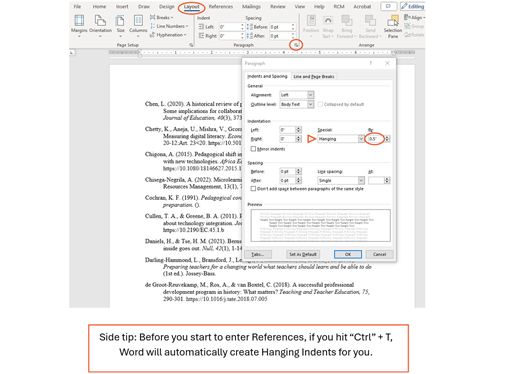
UTRGV formatting guidelines require Hanging indents for the References section. Hanging indents may be necessary in the Table of Contents and List of Tables/Figures, if a title is longer than one line.
Spacing for References
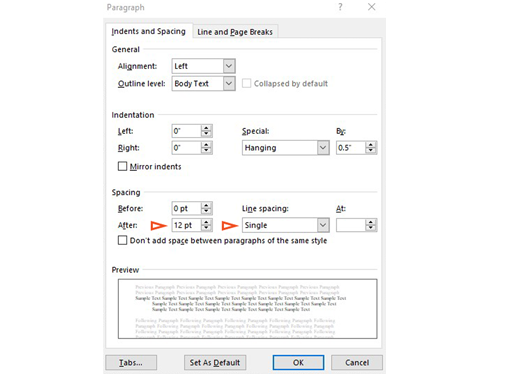
Spacing is the same for References, and any titles in the Table of Contents and List of Tables/Figures that span more than one line. All use hanging indents, and lines within each entry should be single spaced, with double space between entries.
Quick Key Shortcuts
- Shift + F3: changes case (title, sentence, upper, lower)
- Ctrl + T: create hanging indent (prior to entering text)
- Ctrl + Z: undo previous action
- Ctrl + 2: Apply double spacing to paragraph
- Ctrl + Delete: delete one word to the right
- Alt + P: Opens “Layout” tab
- Ctrl + K: pulls up web link dialogue window
- Ctrl + E: center text
- Ctrl + 1: Apply single spacing to paragraph
- Ctrl + Backspace: delete one word to left
- Alt + N: Opens “Insert” tab
- Alt + R: Opens Review (for spell check)