Need help?
For questions, assistance, or to report an issue, please contact the COLTT Help Desk at 956-665-5327 or 956-882-6792.
Browse Help Articles Submit a TicketWhat Faculty Need to Know
Recent updates to federal regulations under Title II of the Americans with Disabilities Act (ADA) require public institutions, including universities, to ensure that digital content is accessible to individuals with disabilities. These updated regulations align with the Web Content Accessibility Guidelines (WCAG) 2.1 Level AA standards and apply to course materials delivered through learning management systems, websites, multimedia, and third-party tools.
Accessibility is no longer optional or reactive—it is a legal requirement and an essential component of inclusive teaching.
What This Means for Faculty
Faculty are responsible for ensuring that instructional materials provided to students—whether in online, hybrid, or traditional courses—are accessible. This includes:
- Documents (Word, PDF, PowerPoint)
- Videos and audio recordings
- Images and graphics
- Content created and provided in Brightspace
- Publisher and third-party digital tools
- Assessments and interactive activities
Accessibility ensures that students using screen readers, captioning, keyboard navigation, or other assistive technologies can fully participate in your course.
How to Begin Improving Accessibility in Your Course
Organize Course Navigation Clearly and Consistently
Clear, consistent course organization supports all learners and is essential for accessibility. Students using screen readers, keyboard navigation, or other assistive technologies rely on predictable layouts and meaningful labels to move through a course efficiently.
Well-organized navigation aligns with:
- WCAG 2.1 Success Criterion 2.4.6 (Headings and Labels)
- WCAG 2.1 Success Criterion 3.2.3 (Consistent Navigation)
First, Create a Clear Course Structure
A clear and predictable course structure reduces cognitive load and helps students focus on learning rather than navigation. Structure your course in a way that aligns with how the course is delivered:
- By Module (Module 1: Foundations, Module 2: Applications…)
- By Week (Week 1: Foundations, Week 2: Applications…)
- By Topic or Unit (Unit 1: Foundations, Unit 2: Applications…)
Use Descriptive Content Titles in Brightspace
Ensure all units, folders, and content items are clearly labeled.
- Label items clearly
- Unit example: Module 1: Introduction to Public Health
- Assignment example: Assignment 1: Case Study Analysis
- Quiz example: Quiz 2: Chapter 4 Knowledge Check
- Avoid vague titles such as “Week 1 Stuff”, "Assignment", or “Content”
- Maintain a consistent naming pattern throughout the course
Limit Unnecessary Navigation Layers
- Avoid deeply nested folders
- Keep important materials within 2–3 clicks
- Place high-priority items at the top of modules
Simplified navigation improves usability for all students.
Next, Organize Content in a Logical Hierarchy
Within each unit:
- Overview or Introduction with Learning Objectives
- Readings and Materials
- Lecture Content or Media
- Activities and Discussions
- Assessments or Assignments
Using a predictable sequence helps students understand expectations and locate materials quickly.
Maintain Consistency Across Units
- Keep similar elements in the same order each week
- Use consistent terminology (e.g., always “Assignments,” not sometimes “Tasks”)
- Avoid moving tools or major components mid-semester
Predictability supports both accessibility and student success.
Page Structure
Fix Headings in Brightspace Pages & Assessment Instructions
Proper headings allow screen reader users to navigate efficiently and understand page structure. This supports WCAG 2.1 Success Criterion 1.3.1 (Info and Relationships).
Note: Always use built-in heading styles (Heading 1, Heading 2, etc.). In the Brightspace text editor, headings are found under the Format dropdown.
- Identify manually formatted headings, such as:
- Bolded text used as section titles
- Enlarged font text used as headers
- Underlined text acting as a heading
- Apply built-in heading styles. Use headings in logical order:
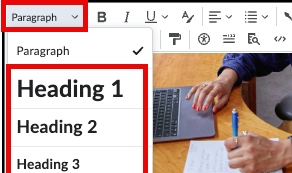
- Heading 1: Page title
- Heading 2: Major sections
- Heading 3: Subsections
- Heading 4: Sub-subsections (if needed)
- Ensure heading sequence is logical,
- Use only one Heading 1 per page
- Do not skip levels (avoid Heading 2 → Heading 4)
- After making updates, run the Brightspace Accessibility Checker (located in the editor toolbar) before saving the page.
Fix Lists in Pages & Instructions
Lists improve readability and allow screen readers to announce the number and type of items. Using proper lists aligns with WCAG 2.1 Success Criterion 1.3.1 (Info and Relationships).
Note: Always use built-in list styles (bullets or ordered). In the Brightspace text editor, lists are found under the Lists icon dropdown.
- Identify manual lists, such as:
- Hyphens(-)
- Asterisks (*)
- Typed numbers (1., 2., 3.)
- Apply the appropriate built-in list tool. In Brightspace editor, select:
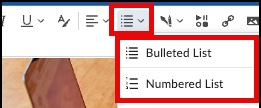
- Bullet List: For related items (materials, components)
- Numbered Lists: For steps, sequences, ranked order
- Ensure list clarity and structure by:
- Avoiding extremely long list entries
- Keeping list items grammatically parallel
- Using lists only for related content
- Avoiding lists for visual spacing or layout
Proper list formatting ensures assistive technologies can interpret and announce content accurately, improving navigation and supporting student confidence.
Improve White Space to Reduce Cognitive Overload
Effective use of white space improves readability, reduces cognitive overload, and supports students with attention, processing, or learning differences.
- Identify areas with excessive text density, such as:
- Long paragraphs with no spacing
- Large blocks of instructions in assignments
- Multiple concepts presented in one paragraph
- Walls of text in quiz descriptions or discussion prompts
- Improve readability by:
- Breaking long paragraphs into shorter sections (3–5 lines when possible)
- Adding spacing between sections
- Using headings to divide content into clear segments
- Converting dense instructions into properly formatted lists
- Placing key instructions on separate lines
- Avoid:
- Using multiple line breaks for visual spacing
- Centering large blocks of text
- Justifying text (which can create uneven spacing)
- Overusing bold or color instead of structural formatting
Text, Font, and Size
Now let’s focus on the text formatting used within Brightspace pages as well as instructions inside assessments.
Text readability plays a major role in accessibility. Poor font choices, inconsistent sizing, or decorative formatting can create barriers for students with low vision, dyslexia, processing differences, or those viewing content on mobile devices.
Accessible text formatting aligns with:
- WCAG 2.1 Success Criterion 1.4.4 (Resize Text)
- WCAG 2.1 Success Criterion 1.4.8 (Visual Presentation)
Use Accessible Font Types
Simple, clean fonts improve readability across devices and assistive technologies.
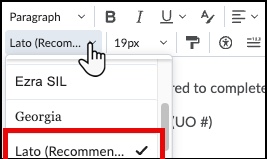
Apply accessible font practices:- Use default system fonts in Brightspace, recommended Lato (Default font)
- Stick to one consistent font style throughout the course
- Use standard sans-serif fonts when possible
- Avoid decorative or cursive fonts for instructional content
- Use bold sparingly for emphasis (not entire paragraphs)
Avoid using ALL CAPS for large blocks of text, as screen readers may interpret them differently and they reduce readability.
Use Accessible Font Size
Text must be readable without requiring students to zoom excessively.
An acceptable, accessible font size for web page body text is typically 16 pixels to 20 pixels (or 12 point–14 point), with 16 pixels being the standard minimum for readability.
Apply consistent font size practices:
- Use the default paragraph size in Brightspace, 20 pixels
- Avoid manually shrinking text
- Use heading styles to create size differences (instead of resizing text manually)
- Maintain consistent sizing across pages
Students must be able to resize text up to 200% without loss of content or functionality.
Use Italics Sparingly
While italics are commonly used for emphasis, excessive or inappropriate use can reduce readability. Italicized text may be difficult to read for students with dyslexia, visual processing differences, or low vision.
Apply accessible emphasis practices:- Use italics only for short phrases (1–3 words when necessary)
- Avoid italicizing full sentences or instructional blocks
- Use bold sparingly for emphasis instead of italics
- Use headings to signal importance rather than stylistic formatting
- Break out key information into lists instead of emphasizing it with italics
Maintain Readable Line Length and Spacing
Text should be easy to scan and process.
Improve readability by:- Keeping paragraph lines moderate in length
- Using left-aligned text
- Avoiding justified alignment
- Avoiding centered paragraphs for instructional content
- Maintaining consistent spacing between sections
Readable text formatting reduces eye strain and cognitive overload.
Accessible font and text practices ensure that students can read, resize, and process course content effectively across devices and assistive technologies. Clear, consistent formatting reduces visual barriers, improves comprehension, and strengthens student self-efficacy by creating a more inclusive and predictable learning environment.
Use Color Accessibly
Color can enhance organization and draw attention to important information, but it must be used carefully. Accessible color use aligns with:
- WCAG 2.1 Success Criterion 1.4.1 (Use of Color)
- WCAG 2.1 Success Criterion 1.4.3 (Contrast – Minimum)
Color should never be the only method used to communicate meaning, and all text must have sufficient contrast to remain readable.
Identify potential color issues, such as:
- Instructions that say “items in red are required”
- Green text indicating “correct” without additional labels
- Color-coded deadlines with no written clarification
- Light gray or pastel text on a white background
- Links indicated only by blue text without underline
Ensure color is not the only way meaning is conveyed
If color is used to emphasize or categorize information:
- Add clear labels such as “Required,” “Important,” or “Deadline”
- Pair color with bold text, icons, or headings
- Provide written descriptions instead of relying on color cues alone
For example:
Instead of: “Complete the assignments in red.”
Use: “Complete the assignments labeled Required (shown in red).”
Ensure sufficient color contrast
Text must be easily readable against its background.
Note: If you color text within Brightspace text editor, the contrast indicator appears automatically inform you if there are contrast issues.
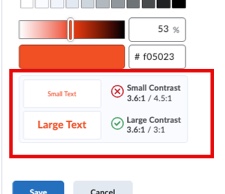
- Use dark text on a light background (or light text on a dark background)
- Avoid light gray, pastel, neon, or overly bright colors for body text
- Confirm content remains readable if printed in grayscale
- Avoid placing text over busy images or patterned backgrounds
Low contrast can make content difficult to read for students with low vision, color blindness, or those viewing content on mobile devices.
Avoid:
- Using red and green together to indicate differences
- Highlighting large blocks of text
- Using color to simulate headings instead of applying heading styles
- Decorative color that reduces readability
Accessible color use ensures all students can interpret content accurately, regardless of visual ability. Clear contrast and multiple indicators reduce confusion, improve comprehension, and support student confidence when navigating course materials.
Meaningful Descriptions
Clear, meaningful descriptions improve accessibility, usability, and student success. Students using screen readers rely on descriptive labels to understand where links lead, what files contain, and how materials connect to course expectations.
Providing meaningful descriptions aligns with WCAG 2.1 Success Criterion 2.4.4 (Link Purpose in Context)
Use Descriptive Link Text (Not Raw URLs)
Avoid posting full web addresses directly in course content.
Instead of: https://www.cdc.gov/healthliteracy/developmaterials/index.html
Use: Understanding Health Literacy and Its Barriers
Screen readers will read every character in a raw URL, which creates confusion and cognitive overload.
Descriptive link text allows students to understand the destination before selecting it.
Avoid vague phrases such as:- Click here
- Read this
- More information
- Link
Instead, clearly describe the purpose of the link:
- Download the Week 3 Research Article (PDF)
- Submit Assignment 1 in the Assignments folder
- Review the Case Study Instructions
Students should understand the purpose of a link even if it is read out of context.
Name Files Clearly in Brightspace
File names should be descriptive and consistent.
Avoid generic titles such as:
- syllabus.pdf
- final.docx
- scan123.pdf
- document(1).pdf
Instead, use clear naming conventions:
- Fall2026_BIOL1301_Syllabus.pdf
- Module2_CaseStudyInstructions.pdf
- Week4_LabReportTemplate.docx
Descriptive file names help students quickly locate materials, reduce confusion when downloading files, support assistive technology navigation, and prevent version-control issues.
Provide Alternative Text for Images
All meaningful images must include concise alternative (alt) text describing the content or purpose of the image. Decorative images should be marked as decorative.
This aligns with WCAG 2.1 Success Criterion 1.1.1 (Non-text Content).
Keep in Mind- Describe the purpose of the image, not just what it looks like.
- Keep alt text concise (generally 1–2 sentences).
- Avoid phrases such as “image of” or “picture of” unless necessary for context.
- If the image contains text, include the essential text in the alt description.
- Mark purely decorative images as decorative (leave alt text blank if the system allows).
- For complex images (charts, graphs, diagrams), provide a brief alt description and include a more detailed explanation in the surrounding text.
In Brightspace,
- Edit page where image is located
- Select the image
- Then select Image Options icon
- Provide Alternative Text
- If decorative, check Decorative Image
- Otherwise provide alt text in Alternative Description text box provided
- Then press Save
Effective alt text ensures students using screen readers receive the same meaningful information as sighted learners.
Create Accessible Tables
Tables should be used only to present data — not for visual layout or spacing. Proper table structure allows screen readers to correctly interpret relationships between rows and columns.
Accessible tables align with WCAG 2.1 Success Criterion 1.3.1 (Info and Relationships).
Identify improper table use, such as:
- Tables used to position text side-by-side
- Tables used to create visual spacing
- Tables without header rows
- Merged or split cells
- Tables without captions or context
If a table is being used only for visual layout, replace it with proper headings, lists, or spacing instead.
Use tables only for presenting structured data
Examples of appropriate use:
- Schedules
- Comparison charts
- Rubric criteria
- Statistical data
- Grading breakdowns
Add proper table headers
In Brightspace, Word, or PowerPoint:
- Create the table using the built-in table tool
- Designate the first row as a Header Row
- Clearly label column headings
Header cells allow screen readers to announce column relationships as users move through the table.
Avoid:
- Leaving header cells blank
- Using bold text instead of proper header formatting
Do not merge or split cells
Merged cells can confuse assistive technologies and disrupt reading order.
Avoid:
- Combining multiple columns into one cell
- Stacking content across merged rows
- Creating visually complex table layouts
Keep tables simple and structured.
Add a table caption or context
Provide a brief caption above the table describing its purpose.
- In Brightspace text editor, select table.
- Then select Table Properties icon and check Captions, then click Save
- Within page, then enter caption in field box provided.
Example: Table 1. Assignment Grading Breakdown
A caption helps all learners understand what the table represents before navigating it.
Keep tables clear and readable
- Avoid overcrowding with excessive data
- Maintain sufficient color contrast
- Do not rely on color alone to convey meaning
- Ensure content is readable on smaller screens
Remediate Created Documents
Accessibility requirements apply not only to Brightspace pages, but also to documents you create and upload. All uploaded documents must follow accessibility best practices and align with WCAG 2.1 principles. Utilize the principles learned above.
Identify documents that require remediation
Review each module for:
- Uploaded Word files
- PowerPoint slides
- PDF handouts
- Syllabi
- Rubrics
- Instruction sheets
If the document contains text, images, tables, or color formatting, it must be reviewed for accessibility.
Use built-in Accessibility Checkers
Microsoft and Adobe provide built-in accessibility checkers you can use to review and fix issues found in these documents.
- In Microsoft Word or PowerPoint, go to Review → Check Accessibility
- In Adobe Acrobat, go to Tools → View more → Prepare for Accessibility → Check for Accessibility
Resources
Visit our Creating Content page for how-to resources on making documents accessible.
Remediating created documents ensures that students using assistive technology can fully access course materials. Applying consistent accessibility principles across Brightspace pages and uploaded documents reduces barriers, strengthens compliance, and supports student confidence in navigating course content.
Caption All Videos
All prerecorded instructional videos must include accurate captions. Captions benefit:
- Deaf or hard-of-hearing students
- English language learners
- Students studying in noisy or quiet environments
This aligns with WCAG 2.1 Success Criterion 1.2.2 (Captions – Prerecorded).
Keep in Mind- Auto-generated captions must be reviewed for accuracy.
- Captions must be time-synchronized.
- Transcripts alone do not replace captions.
- Ensure key visual information is either narrated during the video or provided through audio description.
- Avoid phrases such as “as you can see here” without describing what students are seeing.
Visit Creating Videos page on left-hand menu to learn how to generate and edit videos in Panopto, Youtube and Brightspace Media Library.
Accurate captions are both a legal requirement and a best practice for inclusive teaching.
Review External Content for Accessibility
Accessibility responsibilities extend beyond Brightspace pages. Faculty must also review external resources linked within the course to ensure they are accessible to all students.
External content may include:
- Journal articles
- PDFs hosted on external sites
- Publisher platforms
- Third-party learning tools
- YouTube or streamed videos
- Websites
- Open Educational Resources (OER)
Even if the content was created by a third party, institutions remain responsible for providing accessible access to required materials.
Identify external content in your course
Review each module and assessment for:
- Hyperlinks to outside websites
- Embedded YouTube videos
- Linked PDFs
- Publisher courseware
- External simulations or tools
Check Website Accessibility
- Use a web accessibility checker such as WebAIM WAVE or SiteImprove Accessibility Browser Extension to determine if the page is accessible.
- If page is not accessible, reach out to provider to make changes. If they can not make changes remove resource and replace with accessible alternative.
Review video accessibility
For YouTube or other video platforms:
- Confirm accurate captions are available
- Avoid relying solely on auto-generated captions without review
- Ensure audio content is clearly understandable
- Provide transcripts when possible
If captions are inaccurate or missing, contact owner to make needed modifications. If unable to replace with alternative accessible resource.
Review external PDFs
- Avoid uploading scanned PDFs that are image-only.
If text within the document cannot be highlighted, searched, or copied, it is likely a scanned image and is not accessible to screen readers.
Although Optical Character Recognition (OCR) is available in tools such as Adobe Acrobat, it is not a complete solution. OCR may produce: misspelled words, missing characters, improper punctuation and more throughout the page.
- Run Adobe Acrobats Accessibility checker
- If file allows, fix the issues identified by accessibility checker.
- Confirm PDFs are selectable (not scanned images)
- Ensure documents contain proper headings and tags
- Verify reading order is logical
- If a required external resource is not accessible, replace with accessible alternative
Note: All UTRGV faculty and staff have access to Adobe Acrobat by installing Adobe Creative Cloud.
Proactively reviewing external content reduces compliance risk, prevents barriers before students encounter them, and promotes equitable access. Ensuring third-party materials are accessible strengthens student self-efficacy by removing unnecessary obstacles to learning.
A Manageable Approach
-
Create a Course Accessibility Log
Track courses reviewed, issues identified, actions taken, and completion dates. -
Start with Current-Term Courses
Prioritize courses students are actively taking. -
Work on One Course at a Time
Focus on completing one course before moving to the next. -
Review the Syllabus First
Ensure proper headings, meaningful links, accessible tables, good color contrast, and an accessible file format. -
Update One Module at a Time
Check headings, alt text, lists, tables, and descriptive links. -
Use Brightspace Tools
-
Run the built-in Accessibility Checker for page content.
-
Use Ally to review uploaded files.
-
-
Caption All Videos
Ensure all prerecorded videos include accurate captions. -
Review External Resources
Confirm websites, journals, and videos are accessible. Provide alternatives when needed. -
Log Your Progress
Document updates and improvements.
Accessibility is an ongoing process—not a one-time fix.